Showing posts with label Mythical Designs CT. Show all posts

5/13/16

PTU Crystal Creations and Tezza Dezignz Tube Art

Bee

This tutorial was written on May 13,2016. 
Any similarities to another tutorial is purely coincidental.
All my tutorial are register with My Free Copyright. 
Please do not claim as your own.
This tutorial writer assumes you have a working 
knowledge of using Paint Shop Pro.
This tutorial was done in Paint Shop Pro9,
but can be adapted to use in other 
Paint Shop Pro versions.


SUPPLIES NEEDED

Tube of choice: I'm using the awesome work of Tezza Dezignz Tube Art.
Please do not use unless you have a license to do so. 
Purchase Them HERE

Scrapkit of Choice: I am using PTU Crystal Creations - Beatrice
You can purchase it HERE ...Thanks Crystal

Mask of Choice: I am using Vix's PSP Big Mask #19 
You can download it HERE - Thanks Vix

Filters used:Eye Candy 4000 gradient glow - HERE

Font for Name is Connie
Copy write is always done in Pixelette  HERE

Drop shadow use through out H-2/V-2/O-60/B-6.85

Please leave a thank you when you downloading for supplies.

my tag is just a guide...please use your imagination 
and make the tag your own you do not have to 
use any of the supplies I used.


     LET'S BEGIN

Open up new raster layer 800x800/copy/paste paper of choice
resize to fit canvas/layers/load/save mask/find your mask
and set with these setting/click ok

copy/paste element #30/resize
by 70%/place in center of canvas/add drop shadow

copy/paste element #27/resize by 70% twice/place in front of fence 
layer/duplicate 2x/overlap each flower along front of fence/merge
each layer down/add drop shadow

copy/paste element #1/resize by 70%/place in front of flowers/add
drop shadow

copy/paste element #20/resize by 70%/place in behind fence in center
add drop shadow

copy/paste element #15/resize by 70%/place in front of grass on left
side/add drop shadow

copy/paste tube of choice/resize by 70% twice/place on right side of
 grass/add drop shadow

now it's time to have some fun/add any other elements you wish to use
resize if needed/add drop shadow to each element/place where they will 
look best

add your watermark and copyright credits/give it a slight gradient 
glow.....now give your tag to a friend.

You're done...thank you for trying my tutorial
please send me a copy so that I can show case it on my blog


1/28/12

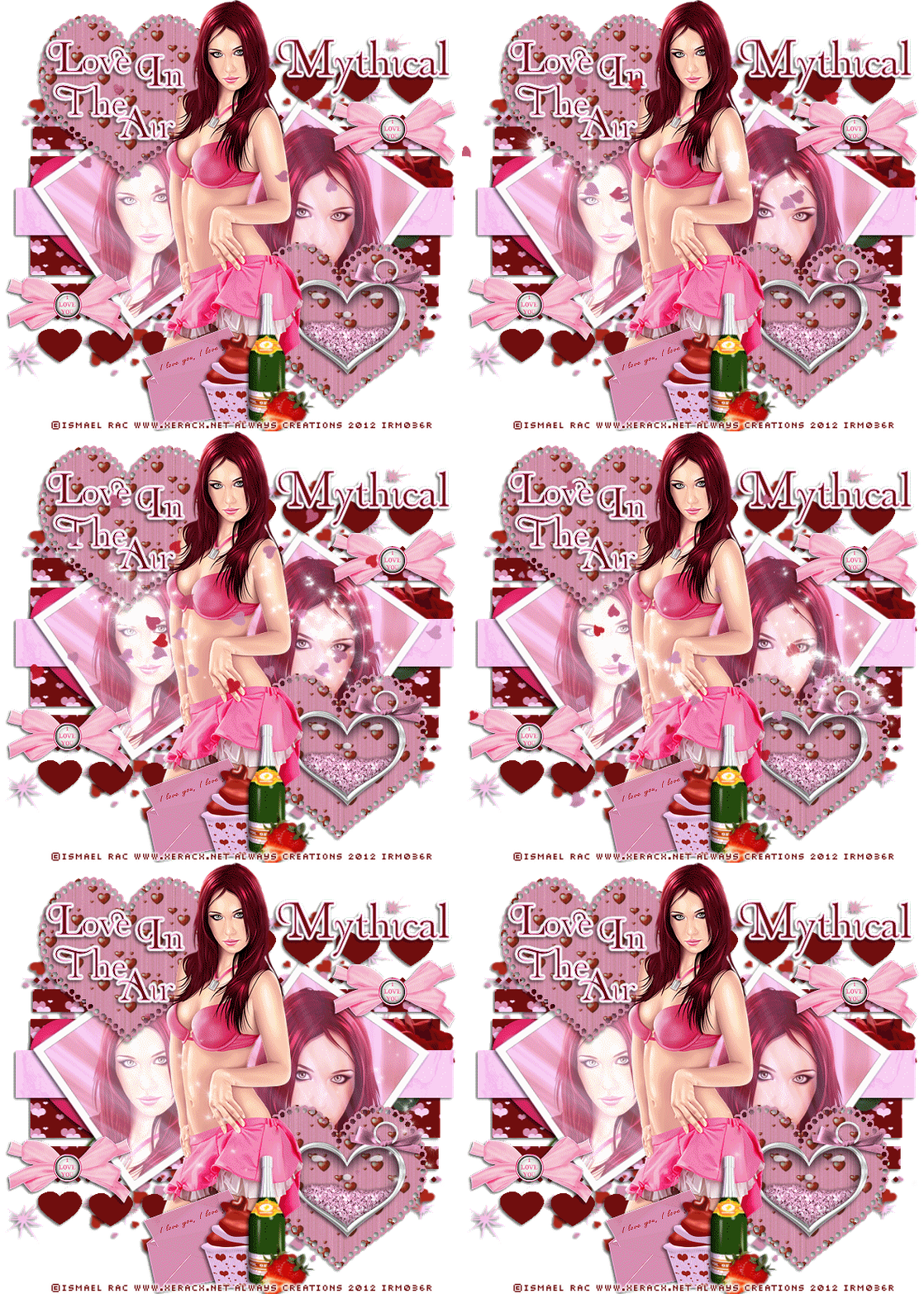
PTU Mythical Designs and Ismael Rac


This tutorial was written on January 28th 2012. 
Any similarities to another tutorial is purely coincidental.
All my tutorial are register with My Free Copyright. 
Please do not claim as your own.
This tutorial writer assumes you have a working 
knowledge of using Paint Shop Pro.
This tutorial was done in Paint Shop Pro9,
but can be adapted to use in other
Paint Shop Pro versions.


SUPPLIES NEEDED

Tube of choice: I'm using the awesome work of Ismael Rac.
I used one with a close up
Please do not use unless you have a license to do so.
You can get his tubes HERE

Scrapkit of Choice: I am using Mythical Designs
PTU Scrap kit called Love In The Air
You can purchase it HERE....Thank you Mythical

Mask of choice:I am using Yez mask #052 
You can download it HERE...
Thank you Yez

Template of Choice: I am using Kittz Kreationz-Template
You can download it HERE....Thank you Kittz

Animation Used: Scappy Bit Of Fun Sparkle Hearts- Ani 21 
You can download HERE...Thanks Simone

Filters used: Eye Candy 4000 gradient glow- Xero- Radiance..

Font for word art & name is Organic Elements 
and copy write is always done in Pixelette ...
Get them HERE

Drop shadow use through out H-2/V-2/O-65/B-6.00

Please leave a thank you when you downloading for supplies.


my tag is just a guide...please use your imagination and make the tag your own
you do not have to use any of the supplies I used.


     LET'S BEGIN

Open up Template and ShiftD and close original...delete copyright layer
resize template 691x652 for space to work/we will resize again at the end/
close all layers/choose paper of choice/copy/paste and put underneath
brush layer/go to mask of choice with these setting and click ok


Copy/paste element #23/resize and place on top of mask layer/add drop shadow

On the following raster layers follow these directions...

activate lg rectangle layer/copy/paste paper of choice/go to lg rectangle layer
invert/go to paper layer and delete/merge down/add drop shadow

copy/paste element#3 on top of lg rectangle layer/resize/add drop shadow/
duplicate 2x/space them beside one another/merge down to one layer

activate thin rectangle layer/copy/paste paper of choice/go to thin rectangle layer
invert/go to paper layer and delete/merge down/add drop shadow

activate rectangle 1 layer/copy/paste paper of choice/I used the same paper as the
lg rectangle/go to rectangle 1 layer/invert/go to paper layer and
delete/merge down/add drop shadow

activate rectangle 2 layer/copy/paste paper of choice/I used the same paper as the
lg rectangle/activate diamond line 1/select/float/defloat/choose color from kit/flood fill
diamond line/add drop shadow

activate diamond line 1/select/float/defloat/choose color from kit/flood fill
diamond line/add drop shadow

activate diamond line 2/select/float/defloat/choose color from kit/flood fill
diamond line/add drop shadow

activate square 1/with magic wand click inside square/copy/paste paper of choice
go to square 1 layer/invert/go to paper layer and delete/merge down/add drop shadow

copy/paste close up of your tube into the square 1/resize to fit/duplicate/close copy
layer/now go to blend/click screen/open copy layer and lower opacity to 42/put
screen layer on top of copy layer

activate square 2/with magic wand click inside square/copy/paste paper of choice
go to square 2 layer/invert/go to paper layer and delete/merge down/add drop shadow

copy/paste close up of your tube into the square 2/resize to fit/duplicate/close copy
layer/xero/radiance with these setting


now go to blend/click soft light/open copy
layer and lower opacity to 42/put soft light layer on top of copy layer

activate lg heart 1 layer/copy/paste paper of choice/go to lg heart 1 layer
invert/go to paper layer and delete/merge down/add drop shadow

activate lg heart 2 layer/copy/paste paper of choice/go to lg heart 2 layer
invert/go to paper layer and delete/merge down/add drop shadow

take magic wand and activate hearts1 layer/flood fill with color from kit/do
the same with hearts2 layer/deactivate and give drop shadow

now add the rest of your elements where you want them/make the tag your own
Have fun with it/make sure you add a drop shadow to each element.

choose your font and type Love In The Air and place on the top lg heart #2
see my tag for example/ add drop shadow

add your watermark and copyright credits/give it a slight gradient glow
...now give your tag to a friend.

Animation

Copy merge your tag and take to animation shop
open up Simone's animation
go to your tags and add the number of layers you need 
from the animation-you should have 53 layers
once that's done go to edit/select all/on your tag
now go to Simone's animation/edit /select all/copy
go to your tag and paste into selection
where you want the animation/Do this again
save as gif
You're done...thank you for trying my tutorial
please send me a copy so that I can show case it on my blog

1/26/12

PTU Mythical Designs and Fred Winkler- Show Off Tag

Here's a tag I did using Mythical Designs PTU Autumn Becomes Winter
Scrap kit. You can purchase this awesome scrap kit HERE


1/19/12

PTU Mythical Designs and Eugene Rzhevskii

This tutorial was written on January 17th 2012. 
Any similarities to another tutorial is purely coincidental.
All my tutorial are register with My Free Copyright.
Please do not claim as your own.
This tutorial writer assumes you have a working
knowledge of using Paint Shop Pro.
This tutorial was done in Paint Shop Pro9,
but can be adapted to use in other
Paint Shop Pro versions.


SUPPLIES NEEDED
Tube of Choice: I am using the amazing artwork of Eugene Rzhevskii
Please do not use unless you have a license to do so. You can
purchase his tubes HERE

Scrapkit of Choice: I am using Mythical Designs PTU Scrap kit called
Emotastic...You can purchase it HERE....Thank you Mythical

Mask of choice: I am using Chichi Designz2 #3 You can download it
HERE...Thank you Chichi

Filters used: No filters

Font  is Stereofidelic and copy write is always
done in Pixelette ... Get them HERE

Drop shadow use through out H-2/V-2/O-65/B-6.00

Please leave a thank you when you downloading for supplies.


my tag is just a guide...please use your imagination and make the tag your own
you do not have to use any of the supplies I used.


     LET'S BEGIN

open up the cluster frame/layer new raster layer/copy/paste paper of choice
go to layers/load/save mask/save mask from disc/with this setting/click ok
layers/merge group


go to frame layer and click inside of frame/selection modify/expand by 8
copy paste paper of choice/resize to fit/now go to frame layer/invent
now go to paper layer and delete/place paper underneath frame/add drop
shadow to frame

click inside frame/selections modify by 8/copy/paste close up tube on top
of frame/resize/now go to frame layer/selection/invert/go to tube layer
and delete/add drop shadow/duplicate tube/on original tube layer/left click
blend/screen/on duplicate layer lower opacity to 76

add any element you wish to use from the kit/resize if needed/add drop shadow

add your main tube/mirror/resize/adjust sharpen/add drop shadow

add your watermark and copyright credits...now give your tag to a friend.

You're done...thank you for trying my tutorial
please send me a copy so that I can show case it on my blog
riggsbee53@gmail.com

PTU Mythical Designs and Elias Chatzoudis

This tutorial was written on January 17th 2011.
Any similarities to another tutorial is purely coincidental.
All my tutorial are register with My Free Copyright.
Please do not claim as your own.
This tutorial writer assumes you have a working 
knowledge of using Paint Shop Pro.
This tutorial was done in Paint Shop Pro9,
but can be adapted to use in other
Paint Shop Pro versions.


SUPPLIES NEEDED
Tube of Choice: I am using the awesome work of Elias Chatzoudis
please do not use his work without a license to do so
you can purchase his tubes HERE

Scrapkit of Choice: I am using Mythical Designs PTU Scrap kit called
Winter Elegance...You can purchase it HERE....Thank you Mythical

Mask of choice:I am using moon beans and spiderwebs mask 16
You can download it HERE...Thank you Staci

Template of Choice: I am using Additive Pleasures xmas Template #8
You can download it HERE....Thank you Tammy

Filters used:..Xero -radiance, Eye Candy5/ nature - icicles and smoke
Eye Candy 4000/gradient glow on text and name

Blends-Screen-overlay and soft light

Font for is Santa's Sleigh-Full and copy write is
always done in Pixelette ... Get them HERE

Drop shadow use through out H-+2/V-2/O-65/B-6.00
Please leave a thank you when you downloading for supplies.


my tag is just a guide...please use your imagination and make the tag your own
you do not have to use any of the supplies I used.


     LET'S BEGIN

Open up Template and ShiftD and close original...delete copyright layer
resize template 700x700 for space to work/we will resize later
close all layers/choose paper of choice/copy/paste and put underneath
raster layer1/go to mask of choice with these setting and click ok


resize each layer 90%/On the each layers except dotted and
word art layers follow these directions...

selection/float/defloat/copy-paste paper of choice/go to raster layer
and invert/then go to paper layer and delete/merge down and add drop
shadow

now where there was a glitter layer /once you merge down go to adjust
add/remove noise/add noise with these setting below/then add your drop shadow


Now you can choose to create your tag the way you want or follow my lead
close all layer except your mask layer and glitter rectangle layer

on your glitter rectangle layer/copy/paste element 6/duplicated and move it
next to the one you just paste/duplicate again and image/mirror/duplicate
that and move over just a bit/you should have 4 trees/merge each layer down
until you have one layer with all four trees on it/adjust/sharpen/
add drop shadow

open your rectangle layer/copy paste your close up tube 3x/resize by 70%/
80% and 90%/on the 70% layer go to blend and choose screen/80% layer go to
blend and choose overlay/ and on the 90% go to blend and choose soft light/
add drop shadow.

Open your text layer and recolor the teal words to match your colors on your tag
leave your dotted rectangle layer as is
on your glitter circle layer/copy/paste element 31/resize by 65%/add drop
shadow

on the circle layer/copy/paste your close up again/resize by 90%/mirror/
take magic wand and click on circle/now go to selections/invert/go to tube
layer and delete/add drop shadow/now go to xero/radiance with this setting
click ok/leave dotted circle as is


open sm glitter circle and small circle/copy/paste element 8/resize by 30%
place on top of small circle/add drop shadow/go to Eye Candy5/icicles with
this setting/click ok


add your main tube and mirror/resize by 95%/add drop shadow/go to eye candy5
smoke with this setting/click ok/ 


merge down the three word art layers/place
them on top of tube leg/now go to eye candy 4000/gradient glow with this
setting/add drop shadow/also add to name,but click 2x


add your watermark and copyright credits...
now give your tag to a friend.

You're done...thank you for trying my tutorial
if you try it, please send me a copy so that 
I can show case it on my blog

10/27/11

PTU Mythical Designs and Gothique Starr

Gothic Touch

This tutorial was written on November 24th 2011. 
Any similarities to another tutorial is purely coincidental.
All my tutorial are register with My Free Copyright. 
Please do not claim as your own.
This tutorial writer assumes you have a 
working knowledge of using Paint Shop Pro.
This tutorial was done in Paint Shop Pro9,
but can be adapted to use in other Paint Shop Pro versions.


SUPPLIES NEEDED

Tube of Choice: I am using the awesome artwork of Gothique Starr..You can purchase
 her tubes HERE...Please do not use without a license to do so

Mask of choice:I am using Weescotslass Creations WSL89 You can download it HERE...
Thank you Chelle

Template of Choice: I am using Saras Sinful creations-Template #20
Sara blog has been removed..If you know where she is please email me
please use another template....Thank you Sara

Scrapkit of Choice: I am using Mythical Designs PTU Scrap kit called Gothic Touch
You can purchase it HERE....Thank you Mythical

Filters used: flaming pear-glare ...HERE and Eye Candy 4000 gradient glow..you can get it HERE


Font for word art & name is Piaguedeath and copy write is always done in Pixelette ...
Get them HERE


Drop shadow use through out H-2/V-2/O-65/B-6.00

Please leave a thank you when you downloading for supplies.


my tag is just a guide...please use your imagination and make the tag your own
you do not have to use any of the supplies I used.


LET'S BEGIN

Open up Template and Shift D and close original...delete copyright layer

resize template 698x529 for space to work
close all layers/choose paper of choice/copy/paste and put underneath
rectangle layer/go to mask of choice with these setting and click ok

    
 On the following raster layers follow these directions...

activate rectangle layer/copy/paste paper of choice/go to rectangle layer
invert/go to paper layer and delete/merge down/add drop shadow


activate circle layer/copy/paste paper of choice/go to circle layer invert/
go to paper layer and delete/merge down/add drop shadow

activate rectangle1 layer/copy/paste paper of choice/go to rectangle1 layer
invert/go to paper layer and delete/merge down/add drop shadow

activate rectangle2 layer/copy/paste paper of choice/go to rectangle2 layer
invert/go to paper layer and delete/merge down/add drop shadow

activate ribbon1 layer/copy/paste paper of choice/go to ribbon1 layer
invert/go to paper layer and delete/merge down/add drop shadow


activate ribbon2 layer/copy/paste paper of choice/go to ribbon2 layer
invert/go to paper layer and delete/merge down/add drop shadow

on rectangle layer/copy/paste the tree/resize to fit/blend/screen/duplicate2x
so that the tree stands out

on the circle layer/copy/paste element3/resize to fit/lower opacity to 60%


on rectangle1 layer/copy/paste element 24/resize to fit/blend mode/over layer

on rectangle2 layer/copy/paste your closeup tube/resize to fit the way you want
lower opacity to 70%/apply flaming pear filter with these setting below


copy/paste your main tube /position it where you want it/add drop shadow

now add the rest of your elements where you want them.make the tag your own.Have fun
with it/make sure you add a drop shadow to each element.

add your watermark and copyright credits...now give your tag to a friend.

You're done...thank you for trying my tutorial
please send me a copy so that I can show case it on my blog

9/9/11

PTU Mythical Designs and Jennifer Janesko

Autumn Glory

This tutorial was written on September 9th 2011.
Any similarities to another tutorial is purely coincidental.
All my tutorial are register with My Free Copyright.
Please do not claim as your own.
This tutorial writer assumes you have a
working knowledge of using Paint Shop Pro.
This tutorial was done in Paint Shop Pro9,
but can be adapted to use in other
Paint Shop Pro versions.


SUPPLIES NEEDED

Tube of Choice: I am using the awesome artwork of Jennifer Janesko..
You can purchase her tubes
HERE...you will need a closeup and regular tube
Please do not use without a license to do so

Scrapkit of Choice: I am using a Mythical Designs PTU Scrapkit- Autumn Glory.
 You can purchase it
HERE....Thank you Sally

Template of Choice: I'm using a template by Essence of Creativity #38. You can get it HERE.
Thank you  for the share Yvette

Mask of Choice: I'm using Creative Misfit Autumn Collection. Place in your mask folder.
You can get it
HERE. Thanks Tina

Filter Used:Eye Candy 4000-Grandient Glow...You can get it HERE
Font for name is Monika and copy write is always done in Pixelette ...
Get them
HERE

Dropshadow use througout H-2/V-2/O-50/B-5.00
Please leave a thank you when you downloading for supplies.

my tag is just a guide...please use your imagination and make the tag your own
you do not have to use any of the supplies I used.


     LET'S BEGIN

Open template/Image resize all layer to 615x615/shiftD/close original template.
Remove background and credits.Close out every layer. Choose paper of choice/
paste underneath all layers.Go to layers/load/save mask/load mask from disk/
find your mask of choice and paste with these setting.merge group


activate circle layer/copy/paste paper of choice/
go to circle layer/invert/go to paper layer 
and delete/merge down
activate square2 layer/copy/paste paper of choice
go to square2 layer/invert
go to paper layer and delete/merge down
activate square1 layer/copy/paste paper of choice
go to square1 layer/invert
go to paper layer and delete/merge down

keep activated/copy paste your close up
tube on top of square1 layer/add drop shadow 

and change blend mode to hard light.
activate rectangles layer/copy/paste paper of choice
go to rectangles layer/invert
go to paper layer and delete/merge down
add any elements you wish to use
make sure you add a drop shadow to each element.

place your main tube where you want it

add drop shadow.(see my tag if needed)
Add your copyright and watermark-
(I put a slight gradient glow on mine)
for the finish touch I took the sparkles 

and copy/paste on top of the tag
now it's ready to give to a friend

thank you for trying my tutorial..please send me a copy of what you did
so I can showcase it..   
riggsbee53@gmail.com