Showing posts with label CT Tutorial. Show all posts

11/21/19

PTU Curious Creative Dreams And Very Many

Christmas Cheer

This tutorial was written on November 22,2019. 
Any similarities to another tutorial is purely coincidental.
All my tutorial are register with My Free Copyright. 
Please do not claim as your own.
This tutorial writer assumes you have a working 
knowledge of using Paint Shop Pro.
This tutorial was done in Paint Shop Pro9,
but can be adapted to use in other 
Paint Shop Pro versions.


SUPPLIES NEEDED

Tube of choice: I'm using the awesome artwork of Very Many.
Please do not use unless you have a license to do so. 
Get Them HERE

Scrapkit of Choice: I am featuring the scrapkit of Curious Creative
Dreams-Christmas Dreams ...You can purchase it HERE ...Thanks Stu


Mask of Choice: I am using a mask by Rebel Dezigns Mask 86
You can download this HERE  Thank You GiZZy
Mask of Choice: I am also using Spiderwebs and Moonbeams Mask 14
You can download it HERE Thank you Stacie

Filters used:Eye Candy 4000 gradient glow - HERE
Toadies - Ommadawn HERE
Penta.com-Color Dot HERE

Font for Name is Santa's Sleigh Full Deluxe
Copy write is always done in Pixelette  HERE

Drop shadow use through out H-3/V-3/O-60/B-6.85

Please leave a thank you when you downloading for supplies.

my tag is just a guide...please use your imagination 
and make the tag your own you do not have to 
use any of the supplies I used.


     LET'S BEGIN

Open up new raster layer 800x800/copy/paste element 18/resize by 70%
place in center of canvas/magic wand/click inside/selections/modify
by 10/invert on frame/copy/paste paper 10/delete on paper/keep
selected/copy paste close up tube/resize to fit the frame/delete on
tube/keep selected/duplicate tube/place on top of frame/eraser tool
erase  any extra tube at the bottom of frame/selection none/add a drop 
shadow on frame

On the bottom tube go to your plugin and select Toadies/Ommadawn
with these selections/add drop shadow


On your top tube Penta dot. com/select color dot with these selections
add drop shadow


copy/paste element 26/now comes the tricky part/depending on the color 
of your tube you may have to change the color of the elements to match
your tube. To do so go to color change tool/change to target/size 8
color all the element you want to change to the color you want/once
done then you can place element where you want on your tag
resize all element to fit your tag/don't forget to add a drop shadow

now it's time to have some fun/add all elements you wish to use/place
where they will look best on your tag/once your tag is finish you can 
place your mask underneath the tag. 
I used two masks/open paper of 
choice/ recolor paper if needed/find your mask/ I used Rebel Dezigns 86


and Spiderwebs and Moonbeams 14/with these setting


add your watermark and copyright credits/give it a slight gradient glow
now give your tag to a friend.

You're done...thank you for trying my tutorial
please send me a copy so that I can show case it on my blog

8/10/18

What we Are

What we Are

This tutorial was written on August 10,2018. 
Any similarities to another tutorial is purely coincidental.
All my tutorial are register with My Free Copyright. 
Please do not claim as your own.
This tutorial writer assumes you have a working 
knowledge of using Paint Shop Pro.
This tutorial was done in Paint Shop Pro9,
but can be adapted to use in other 
Paint Shop Pro versions.


SUPPLIES NEEDED

Tube of choice: I'm using the awesome work of Yuriko Shirou.
Please do not use unless you have a license to do so. 
Get Them HERE

Scrapkit of Choice: I am using PTU Honored Scraps Yuriko Shirou
Bundle #5. You can download it HERE ...Thank You Patty

Template of choice:I am using a collab template 2 from Divine Intentions
You can download it HERE...Thanks Missy

Mask of Choice: I am using MPM Mask 32
You can download it HERE.... Thank You Millie

Filters used:Eye Candy 4000 gradient glow - HERE

Animation - Rebel Dezigns - Package 100-Animation 298
Puechase Animation HERE- Thank you Gizzy


Font for Name is Precious - HERE
Copy write is always done in Pixel Operator  HERE

Dropshadow use through out / H-4/V+4/O-60/B-6.85
Smooth Setting through out 


Please leave a thank you when you downloading for supplies.
My tag is just a guide...please use your imagination 
and make the tag your own. You do not have to 
use any of the supplies I used.


     LET'S BEGIN

Open up Template and ShiftD and close original...delete 
copyright layer/close all layers/copy/paste paper of choice
resize to fit canvas/layers/load/save mask/find your mask
and set with these setting/click ok


On the following raster layers follow these directions...

leave circle 1 layer as is/add drop shadow/activate rectangle layer
selections/modify/smooth with setting above/invert on rectangle layer
copy/paste paper of choice/resize paper/delete on paper layer/merge down
add drop shadow

activate square 1 layer/selections/modify/smooth with setting above
invert on square layer/copy/paste paper of choice/resize paper
delete on paper layer/merge down

activate square 2 layer/selections/modify/smooth with setting above
invert on square layer/copy/paste paper of choice/resize paper
delete on paper layer/merge down

activate circle 2 layer/selections/modify/smooth with setting above
invert on circle layer/copy/paste paper of choice/resize paper
delete on paper layer/merge down

activate square 3 layer/selections/modify/smooth with setting above
invert on square layer/copy/paste paper of choice/resize paper
delete on paper layer/merge down

leave square back as is/activate square 4 layer/selections/modify
smooth with setting above/invert on square layer/copy/paste paper of 
choice/resize paper/delete on paper layer/merge down

activate square 5 layer/selections/modify/smooth with setting above
invert on square layer/copy/paste paper of choice/resize paper
delete on paper layer/merge down/leave remaing frames as is

copy paste the half tube /resize by 70%/place on circle 1/activate
circle/invert/delete on tube/add drop shadow

add any elements you wish to use/resize if needed/add drop shadow
to each element/place where they will look best

copy/paste full tube/place on left side of tag/resize by 75%/add
drop shadow

chose a wordart and position on tag where ever looks best to you
add gradient glow and drop shadow

add your watermark and copyright credits/give it a slight gradient 
glow

To animate or not it's up to you

Close all layers except

Circle 2
Square 2
Square 1
Rectangle
Circle 1
mask layer

Copy/merge remaining layers/take to animation shop
look for your animation and open it/click on your tag/edit/duplicate 5 times
click on tag and duplicate 4 times/ you should now have 25 layers
on your animation/edit/select all/paste into selected frame/view animation to make sure it's correct
now go back to psp and close layers that are open and open all other layers
copy/merge and take to animation shop/paste/click on your tag/edit/duplicate 5 times
click on tag and duplicate 4 times/ you should now have 25 layers/select all/copy
pasted into selected frame/file optimization wizard/follow the setting below


click ok until end/save

.....now give your tag to a friend.

You're done...thank you for trying my tutorial
please send me a copy so that I can show case it on my blog

1/14/18

Barbara Jensen-Memories of Love

Memories of Love

This tutorial was written on January 14,2018. 
Any similarities to another tutorial is purely coincidental.
All my tutorial are register with My Free Copyright. 
Please do not claim as your own.
This tutorial writer assumes you have a working 
knowledge of using Paint Shop Pro.
This tutorial was done in Paint Shop Pro9,
but can be adapted to use in other 
Paint Shop Pro versions.


SUPPLIES NEEDED

Tube of choice: I'm using the awesome work of Barbara Jensen.
Please do not use unless you have a license to do so. 
Get Them HERE

Scrapkit of Choice: I am using LadyHawwk Designs Exclusive 
Barbara Jensen-Beloved......You can purchase it HERE ...Thanks Cat

Mask of Choice: I am using mask by Rebel Designz #182 and #219
You can download them HERE

Filters used:Eye Candy 4000 gradient glow - HERE
Penta.com - Jeans- HERE
Toadies - Omnadawn - HERE

Font for Name and Wordart is Bosk - HERE
Word Art is my own - HERE (Or you can use your own)
Copy write is always done in Pixelette  HERE

Dropshadow use through out H-2/V-2/O-60/B-6.85

Please leave a thank you when you downloading for supplies.

my tag is just a guide...please use your imagination 
and make the tag your own you do not have to use any of 
the supplies I used. Also make sure you read each
designer or artist TOU.Make sure you save as you go along so
you don't lose anything.


     LET'S BEGIN

Open up new raster layer 800x800/copy/paste paper of choice
resize to fit canvas/layers/load/save mask/find your mask
and set with these setting/click ok


copy/paste another paper of choice
resize to fit canvas/layers/load/save mask/find your mask


Copy/paste frame 3/resize by 70%
place in center of canvas/magic wand/click inside/selections/modify
by 20/invert on frame/copy/paste paper of choice/delete on paper
selection none/add drop shadow on frame

copy/paste tube close up/place on outside of frame/duplicate/effects
penta.com-jeans with these setting on the top tube


On bottom tube/effects-Toadies-Omnadawn with these setting


add drop shadow to both

copy/paste elements/resize to suit the tag/place where you would like 
them to be/It doesn't have to look like mine/make it your own 

add drop shadow to each element after resizing and placement

Elements used:
element 1
element 6
elemeny 8
element 13
element 14
element 15
element 33
element 34
element 39
element 44
element 46

add any other elements you wish to use/resize if needed/add drop shadow 
to each element/place where they will look best
you can add my wordart or use one of your own

add your watermark and copyright credits/give it a slight gradient glow
now give your tag to a friend

You're done...thank you for trying my tutorial
please send me a copy so that I can show case it on my blog

9/19/17

PTU Freeks Creations - Spooky Fun

Chills and Thrills

This tutorial was written on September 19,2017. 
Any similarities to another tutorial is purely coincidental.
All my tutorial are register with My Free Copyright. 
Please do not claim as your own.
This tutorial writer assumes you have a working 
knowledge of using Paint Shop Pro.
This tutorial was done in Paint Shop Pro9
but can be adapted to use in other 
Paint Shop Pro versions.


SUPPLIES NEEDED

Scrapkit of Choice: I am using PTU Freeks Creations-Spooky Fun
You can download it HERE ...Thank You Holly

Template of choice:I am using DeesSign Depot Template Chills and Thrills
This is an exclusive CDO template.PU Only.You can download it HERE...Thanks Dee

Mask of Choice: I am using DBV Mask 104
You can download it HERE.... Thank You Vabs

Filters used:Eye Candy 4000 gradient glow - HERE

Font for Name is Back to Fanatic Lite
Copy write is always done in Pixelade  HERE

Dropshadow use through out H-2/V-2/O-60/B-6.85

Please leave a thank you when you downloading for supplies.
my tag is just a guide...please use your imagination 
and make the tag your own you do not have to 
use any of the supplies I used.


     LET'S BEGIN

Open up Template and ShiftD and close original...delete 
copyright layer/close all layers/copy/paste paper of choice
resize to fit canvas/layers/load/save mask/find your mask
and set with these setting/click ok


On the following raster layers follow these directions...

activate orange strip layer/copy/paste paper of choice/resize
paper/selections/modify/smooth with these setting


invert on 
strip layer/delete on paper layer/merge down/add drop shadow

activate purple square layer/copy/paste paper of choice/resize
paper/selections/modify/smooth with these setting above/invert on 
square layer/delete on paper layer/merge down/add drop shadow

leave green strip layer as is/add drop shadow

activate blue circle layer/copy/paste paper of choice resize paper
selections/modify/smooth with setting above/invert on circle layer
delete on paper layer/merge down/add drop shadow

activate green rectangle layer/copy/paste paper of choice resize paper
selections/modify/smooth with setting above/invert on rectangle layer
delete on paper layer/merge down/add drop shadow

leave black glitter layer and orange oval layer as is/add drop shadow

activate purple circle layer/copy/paste paper of choice/resize paper
selections/modify/smooth with setting above/invert on circle layer
delete on paper layer/merge down/leave large dotted circle layer as is

leave large dotted circle layer and blue circle layer as is/add drop shadow
leave all other layers as is

Now is the time to make your tag any way you want using elements from the kit
add as many as you like/resize if needed/add drop shadow to each element/
place where they will look best./once you finish/resize tag

add your watermark and copyright credits/give it a slight gradient 
glow.....now give your tag to a friend.

You're done...thank you for trying my tutorial
please send me a copy so that I can show case it on my blog

9/27/15

Hungry Hill and Anna Liwanag

Berries 4 Sale

This tutorial was written on September 27,2015. 
Any similarities to another tutorial is purely coincidental.
All my tutorial are register with My Free Copyright. 
Please do not claim as your own.
This tutorial writer assumes you have a working 
knowledge of using Paint Shop Pro.
This tutorial was done in Paint Shop Pro9,
but can be adapted to use in other 
Paint Shop Pro versions.


SUPPLIES NEEDED

Tube of choice: I'm using the awesome work of Anna Liwanag.
Please do not use unless you have a license to do so. 
Get Them HERE

Scrapkit of Choice: I am using CDO Hungry Hill Berries For Breakfast 
No longer available ...Thanks Alison

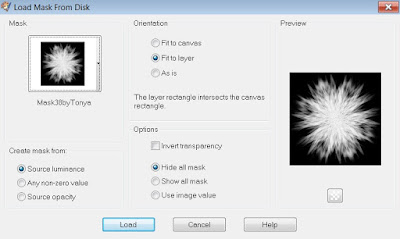
Mask of Choice: I am using Tonya's Mask #9 and #38
You can download it HERE.... Thank You Tonya

Filters used:Eye Candy 4000 gradient glow - HERE

Font for Name is Connie
Copy write is always done in Pixelette  HERE

Drop shadow use through out H-2/V-2/O-60/B-6.85

Please leave a thank you when you downloading for supplies.

my tag is just a guide...please use your imagination 
and make the tag your own you do not have to 
use any of the supplies I used.


     LET'S BEGIN

Open up new raster layer 800x800/copy/paste paper of choice
resize to fit canvas/layers/load/save mask/find your mask
and set with these setting/click ok


copy/paste paper of choice/resize to fit canvas/layers/load
save mask/find your mask/and set with these setting/click ok


copy/paste  frame #2/resize by 70%/click inside frame/selection
modify/expand by 15/invert on frame/copy/paste paper of choice
resize paper to fit canvas/delete on paper/place paper underneath
frame/merge down/place frame at an angle/add drop shadow

copy/paste  frame #3/resize by 70%/click inside frame/selection
modify/expand by 15/invert on frame/copy/paste paper of choice
resize paper to fit canvas/delete on paper/place paper underneath
frame/merge down/place frame at an angle/add drop shadow

copy/paste tube of choice/resize if needed/place tube in front of
frames/add drop shadow

copy/paste table/resize by 70%/place in front of tube/add drop shadow

copy/paste sign/resize by 70% twice /place on left side of table/add 
drop shadow

copy/paste berry-basket/resize so that the basket fits on the table
add drop shadow

copy/paste Strawberries/you will need 5 large set of strawberries/and 
one small set for the basket/resize first set of strawberries several  
times to make it small enough to fit within the basket/resize the next
5 sets of strawberries by 70% twicw for the table/in front of the table
and on top of the bowls/add drop shadow ( see tag for placement)

copy/paste set of bowls/resize by 70%/place on right side of tale/add
drop shadow/put set of berries in top bowl

Copy/paste strawberry circle/resize by 70%/place on left side/in front 
of table/behind strawberries/ add drop shadow

copy/paste flowers/resize by 50% twice/placeon right side of strawberries
duplicate/mirror flowers/adddrop shadow

copy/paste ladybug/resize by 50% twice/place on leftside below sign/add
drop shadow
copy/paste vine/resize by 70% twice/duplicate three times/spread the vine
out below the strawberries/merging each layer down/add drop shadow (see
tag for placement)

copy/paste clock/resize by 70% twice/place on upper right side of frame
add drop shadow

add your watermark and copyright credits/give it a slight gradient 
glow.....now give your tag to a friend.

You're done...thank you for trying my tutorial
please send me a copy so that I can show case it on my blog


9/24/15

CDO Hungry Hill and Jennifer Janesko

Summer End

This tutorial was written on September 24,2015. 
Any similarities to another tutorial is purely coincidental.
All my tutorial are register with My Free Copyright. 
Please do not claim as your own.
This tutorial writer assumes you have a working 
knowledge of using Paint Shop Pro.
This tutorial was done in Paint Shop Pro9,
but can be adapted to use in other 
Paint Shop Pro versions.


SUPPLIES NEEDED

Tube of choice: I'm using the awesome work of Jennifer Janesko.
Please do not use unless you have a license to do so. 
Get Them HERE

Scrapkit of Choice: I am using CDO Hungry Hill Scraps - Summer Ends 
No longer available ...Thanks Alison

Mask of Choice: I am using Moonbeans ans Spiderweb Mask34
You can download it HERE.... Thank You Staci

Filters used:Eye Candy 4000 gradient glow - HERE

Font for Name is Alex Brush
Copy write is always done in Pixelette  HERE

Drop shadow use through out H-2/V-2/O-60/B-6.85

Please leave a thank you when you downloading for supplies.

my tag is just a guide...please use your imagination 
and make the tag your own you do not have to 
use any of the supplies I used.

     LET'S BEGIN

Open up new raster layer 800x800/copy/paste paper of choice
resize to fit canvas/layers/load/save mask/find your mask
and set with these setting/click ok


copy/paste button-circle frame/resize by 70%/copy/paste paper of
choice/resize to fit canvas/click insize frame/selections modifiy
expand by 15/selections/invert/delete on paper layer/place underneath 
frame/keep activate/copy/paste tube with elispe/resize by 70%/delete 
on tube/add drop shadow

copy/paste leaves element/resize by 50% then resize by 70% place on 
left hand side of frame/add drop shadow

copy/paste flower-1/resize by 50% then resize by 70% twice place in
the middle of the leaves/add drop shadow

copy/paste fabric-flower-1/resize by 50% then resize by 70% twice
place at the top of the first flower/add drop shadow

copy/paste berries-1 element/resize by 50% then resize by 70%/place at
the top of the first flower and underneath the second flower/add drop
shadow

copy/paste rhododend/resize by 70% twice/place at behind the second 
flower and underneath berries/add drop shadow

copy/paste tree/resize by 70%/place at behind the frame/add drop shadow

copy/paste fabric-leaf-1/resize by 70% twice/place at behind the first 
leaves/add drop shadow

copy/paste ribbon-1/resize by 70% twice/place in front of leaves/add 
drop shadow

copy/paste ribbon-cluster/resize by 70% twice/place on top of first ribbon
 add drop shadow

copy/paste apple /resize by 50% twice/place on top of berries/add drop 
shadow

copy/paste pumpkin-2/resize by 50% then resize by 70%/place on top of both 
ribbons/add drop shadow

add wordart if you wish/add fat gradient glow/add drop shadow

add your watermark and copyright credits/give it a slight gradient 
glow.....now give your tag to a friend.

You're done...thank you for trying my tutorial
please send me a copy so that I can show case it on my blog

1/30/15

CDO Hungry Hill Scraps and Caron Vinson - Family Comfort

Family Comfort

This tutorial was written on Januray 30,2015. 
Any similarities to another tutorial is purely coincidental.
All my tutorial are register with My Free Copyright. 
Please do not claim as your own.
This tutorial writer assumes you have a working 
knowledge of using Paint Shop Pro.
This tutorial was done in Paint Shop Pro9,
but can be adapted to use in other 
Paint Shop Pro versions.


SUPPLIES NEEDED

Tube of choice: I'm using the awesome work of Caron Vinson.
Please do not use unless you have a license to do so. 
Get Them HERE

Scrapkit of Choice: I am using PTU Hungry Hill Scraps Country Comfort
No longer available ...Thank You Alison

Template of choice:I am using Millie PSP Madness Template #310
You can download it HERE...Thanks Millie

Mask of Choice: I am using Monti'Playhouse #1
You can download it HERE.... Thank You 

Filters used:Eye Candy 4000 gradient glow - HERE

Font for Name is Cose To You
Copy write is always done in Pixelette  HERE

Dropshadow use through out H-2/V-2/O-60/B-6.85

Please leave a thank you when you downloading for supplies.

my tag is just a guide...please use your imagination 
and make the tag your own you do not have to 
use any of the supplies I used.


     LET'S BEGIN

Open up Template and ShiftD and close original...delete 
copyright layer/close all layers/copy/paste paper of choice
resize to fit canvas/layers/load/save mask/find your mask
and set with these setting/click ok


On the following raster layers follow these directions...

activate left rectangle layer 18/copy/paste paper of choice
resize paper/selections/invert on rectangle layer/delete on paper 
layer/merge down/add drop shadow

activate circle layer 19/copy/paste paper of choice resize paper
selections/invert on circle layer/delete on paper layer/merge 
down/add drop shadow

activate large circle dotted layer 23/recolor with a color from one of
the papers in the kit/leave glitter layer 24 as is/add drop shadow to 
both layers

activate circle layer 25/copy/paste paper of choice/resize paper/selections
invert on circle layer/delete on paper layer/merge down/add drop shadow

Copy/paste element 5/resize by 70 %/place underneath rectangle layer and
on top of mask layer/duplicate and mirror/add drop shadow to both

copy/paste tube close up/resize if needed/place on top of first rectangle
effect eye candy soften with these setting/click ok/add drop shadow

copy/paste element 19/ resize by 70%/place the tree on top of third circle 
layer/add drop shadow

activate copy of rectangle layer 18/copy/paste paper of choice/resize paper
selections/invert on rectangle layer/delete on paper layer/merge down/add 
drop shadow/copy/paste element 3/ resize if needed/on square dotted layer 21
and copy of layer 21/change color to match tag/add drop shadow to both

activate small rectangle layer 14/copy/paste paper of choice/resize paper
selections/invert on rectangle layer/delete on paper/layer/merge down
add drop shadow/recolor dotted line layer 15 and copy of line 15 to match 
tag/recolor dotted line layer 22 and copy of line 22 a lighter color/add
drop shadow

activate copy of rectangle layer 14/copy/paste paper of choice/resize paper
selections/invert on rectangle layer/delete on paper/layer/merge down/add 
drop shadow

activate copy of rectangle layer 9/copy/paste paper of choice/resize paper
selections/invert on rectangle layer/delete on paper/layer/merge down/effects
mura's seamless tile with these setting/add drop shadow

copy/paste tube of choice/resize if needed/place in center of rectangle 9
add drop Shadow

add any other elements you wish to use/resize if needed/add drop 
shadow to each element/place where they will look best

add your watermark and copyright credits/give it a slight gradient 
glow.....now give your tag to a friend.

You're done...thank you for trying my tutorial
please send me a copy so that I can show case it on my blog

1/27/15

CDO Hungry Hill Scraps and Zindy Nielsen - True Love

True Love

This tutorial was written on January 27,2015. 
Second tutorial with Swept Away
Any similarities to another tutorial is purely coincidental.
All my tutorial are register with My Free Copyright. 
Please do not claim as your own.
This tutorial writer assumes you have a working 
knowledge of using Paint Shop Pro.
This tutorial was done in Paint Shop Pro9,
but can be adapted to use in other 
Paint Shop Pro versions.


SUPPLIES NEEDED

Tube of choice: I'm using the awesome work of Zindy Nielsen.
Please do not use unless you have a license to do so. 
Get Them HERE

Scrapkit of Choice: I am using PTU Hungry Hill Scraps Swept Away
You can purchase it HERE ...Thanks Alison

Mask of Choice: I am using the glitter-scatter within the kit...Thank You 

Filters used:Eye Candy 4000 gradient glow - HERE

Font for Name is Arizonia
Copy write is always done in Pixelade  HERE

Dropshadow use through out H-2/V-2/O-60/B-6.85

Please leave a thank you when you downloading for supplies.

my tag is just a guide...please use your imagination 
and make the tag your own you do not have to 
use any of the supplies I used.


     LET'S BEGIN

Open up new raster layer 800x800/copy/paste screen/resize by 70%
copy/paste glitter scatter/resize by 70%/add drop shadow

copy/paste recarrier/resize by 70%/place in front of screen/add
drop shadow

Copy/paste rose cluster/resize/place at the bottom of screen/duplicate
mirror/add drop shadow

Copy/ paste tube of choice/resize by 70%/place tube in front of recarrier
add drop shadow

add any other elements you wish to use/resize if needed/add drop 
shadow to each element/place where they will look best

add wordart if you wish/add drop shadow

add your watermark and copyright credits/give it a slight gradient 
glow.....now give your tag to a friend.

You're done...thank you for trying my tutorial
please send me a copy so that I can show case it on my blog

CDO Hungry Hill Scraps and Anna Liwanag - Swept Away

Swept Away

This tutorial was written on January 27, 2015. 
Any similarities to another tutorial is purely coincidental.
All my tutorial are register with My Free Copyright. 
Please do not claim as your own.
This tutorial writer assumes you have a working 
knowledge of using Paint Shop Pro.
This tutorial was done in Paint Shop Pro9,
but can be adapted to use in other 
Paint Shop Pro versions.


SUPPLIES NEEDED

Tube of choice: I'm using the awesome work of Anna Liwanag.
Please do not use unless you have a license to do so. 
Get Them HERE

Scrapkit of Choice: I am using PTU Hungry Hill Scraps Swept Away
You can purchase it HERE ...Thanks Alison

Mask of Choice: I am using the lace-mat within the kit...Thank You 

Filters used:Eye Candy 4000 gradient glow - HERE

Font for Name is Ruthie
Copy write is always done in Pixelette  HERE

Drop shadow use through out H-2/V-2/O-60/B-6.85

Please leave a thank you when you downloading for supplies.

my tag is just a guide...please use your imagination 
and make the tag your own you do not have to 
use any of the supplies I used.


     LET'S BEGIN

Open up new raster layer 800 x 800/copy/paste paper of choice
resize to fit canvas/layers/load/save mask/find your mask
within the kit/copy/paste as background

copy/paste door/resize by 70% twice/copy/drape 1/mirror/resize 
to fit door/copy/paste drape 2/resize to fit door/place on the
other side of the door/add a slight drop shadow

Copy/ paste tube of choice/resize by 70%/place tube in front of 
door/ add drop shadow

add any other elements you wish to use/resize if needed/add drop 
shadow to each element/place where they will look best

add wordart if you wish/add fat gradient glow/add drop shadow

add your watermark and copyright credits/give it a slight gradient 
glow.....now give your tag to a friend.

You're done...thank you for trying my tutorial
please send me a copy so that I can show case it on my blog

8/25/12

PTU LadyHawwk Designs and Jennifer Janesko

Angel
This tutorial was written on August 22,2012.
Any similarities to another tutorial is purely coincidental.
All my tutorial are register with My Free Copyright.
Please do not claim as your own.This tutorial writer assumes
you have a working knowledge of using Paint Shop Pro.
This tutorial was done in Paint Shop Pro9,
but can be adapted to use in other Paint Shop Pro versions.
SUPPLIES NEEDED
Tube of choice: I'm using the awesome work of Jennifer Janesko .
Please do not use unless you have a license to do so.
  You can get her tubes HERE

Scrapkit of Choice: I am using LHD IB JJ 7-3
You can purchase it HERE ...Thanks Cat

Template of choice:I am using Addictive Pleasures #2
You can download it HERE...Thank you Tamie

Filters used:Eye Candy 4000 gradient glow - HERE
VM Natural - Sparkles HERE 
Penta.com - Color dot HERE
Font for Name is Milan Bold HERE
Copy write is always done in Pixelette HERE
Dropshadow use through out H-2/V-2/O-50/B-5.00

Please leave a thank you when you downloading for supplies.
my tag is just a guide...please use your own imagination
  and make the tag your own you do not have to use any of the supplies I used.

LET'S BEGIN

Open up Template and ShiftD and close original...
delete copyright layer/close all layers except mask layer
change color of mask to match your tube
On the following raster layers follow these directions...
activate oval layer/copy/paste paper of choice/resize
selection/invert on oval layer/delete on paper layer/merge
down/keep activated/copy/paste tube of choice/selections
invert on oval layer/delete on tube layer/add drop shadow
activate pink strip1 layer/copy/paste paper of choice/resize
selection/invert on pink strip1 layer/delete on paper layer
merge down/effects/penta.com/color dots with these settings


click ok/add drop shadow
activate pink strip2 layer/copy/paste paper of choice/resize
selection/invert on pink strip2 layer/delete on paper layer merge
 down/effects/VM Natural/sparkles/with these settings


click ok/add drop shadow/leave dotted oval as is
activate oval rectangle layer/copy/paste paper of choice/resize
selection/invert on oval rectangle layer/delete on paper layer merge
 down/add drop shadow/because I wanted her face to show/I moved
 this layer down a little/adjust the black dotted rectangle

activate rectangle 2 layer/copy/paste paper of choice/resize
selection/invert on rectangle 2 layer/delete on paper layer
merge down/add drop shadow/leave angel word as is/leave
 oval glitter frame as is/add drop shadow

activate circle layer 1/copy/paste paper of choice/resize
selection/invert on circle layer1/delete on paper layer/merge
down/keep activated/copy/paste/tube of choice/resize
 so that you have a close up of her face/selection/invert
on circle layer/delete on tube layer/deactivate/mirror
 the tube/add drop shadow leave circle frame1
and angel word art2 as is/add drop shadow

activate circle layer2/copy/paste paper of choice/resize
selection/invert on circle layer2/delete on paper layer/merge
down/keep activated/copy/paste/tube of choice/resize
so that you have a close up of her face/selection/invert
on circle layer/delete on tube layer/deactivate/add drop
shadow leave circle frame2 and angel word art3 as is
add drop shadow

add any other elements to make your tag your own
add drop shadow on each element/resize your tag

add your watermark and copyright credits/give
 it a slight gradient glow ...now give your tag to a friend.

You're done...thank you for trying my tutorial
please send me a copy so that I can show case it on
my blog send to....riggsbee53@gmail.com