Showing posts with label Very Many. Show all posts

11/21/19

PTU Curious Creative Dreams And Very Many

Christmas Cheer

This tutorial was written on November 22,2019. 
Any similarities to another tutorial is purely coincidental.
All my tutorial are register with My Free Copyright. 
Please do not claim as your own.
This tutorial writer assumes you have a working 
knowledge of using Paint Shop Pro.
This tutorial was done in Paint Shop Pro9,
but can be adapted to use in other 
Paint Shop Pro versions.


SUPPLIES NEEDED

Tube of choice: I'm using the awesome artwork of Very Many.
Please do not use unless you have a license to do so. 
Get Them HERE

Scrapkit of Choice: I am featuring the scrapkit of Curious Creative
Dreams-Christmas Dreams ...You can purchase it HERE ...Thanks Stu


Mask of Choice: I am using a mask by Rebel Dezigns Mask 86
You can download this HERE  Thank You GiZZy
Mask of Choice: I am also using Spiderwebs and Moonbeams Mask 14
You can download it HERE Thank you Stacie

Filters used:Eye Candy 4000 gradient glow - HERE
Toadies - Ommadawn HERE
Penta.com-Color Dot HERE

Font for Name is Santa's Sleigh Full Deluxe
Copy write is always done in Pixelette  HERE

Drop shadow use through out H-3/V-3/O-60/B-6.85

Please leave a thank you when you downloading for supplies.

my tag is just a guide...please use your imagination 
and make the tag your own you do not have to 
use any of the supplies I used.


     LET'S BEGIN

Open up new raster layer 800x800/copy/paste element 18/resize by 70%
place in center of canvas/magic wand/click inside/selections/modify
by 10/invert on frame/copy/paste paper 10/delete on paper/keep
selected/copy paste close up tube/resize to fit the frame/delete on
tube/keep selected/duplicate tube/place on top of frame/eraser tool
erase  any extra tube at the bottom of frame/selection none/add a drop 
shadow on frame

On the bottom tube go to your plugin and select Toadies/Ommadawn
with these selections/add drop shadow


On your top tube Penta dot. com/select color dot with these selections
add drop shadow


copy/paste element 26/now comes the tricky part/depending on the color 
of your tube you may have to change the color of the elements to match
your tube. To do so go to color change tool/change to target/size 8
color all the element you want to change to the color you want/once
done then you can place element where you want on your tag
resize all element to fit your tag/don't forget to add a drop shadow

now it's time to have some fun/add all elements you wish to use/place
where they will look best on your tag/once your tag is finish you can 
place your mask underneath the tag. 
I used two masks/open paper of 
choice/ recolor paper if needed/find your mask/ I used Rebel Dezigns 86


and Spiderwebs and Moonbeams 14/with these setting


add your watermark and copyright credits/give it a slight gradient glow
now give your tag to a friend.

You're done...thank you for trying my tutorial
please send me a copy so that I can show case it on my blog

1/31/16

PTU Creative Crazy Scraps and Very Many

Memories of Love

This tutorial was written on January 31,2016. 
Any similarities to another tutorial is purely coincidental.
All my tutorial are register with My Free Copyright. 
Please do not claim as your own.
This tutorial writer assumes you have a working 
knowledge of using Paint Shop Pro.
This tutorial was done in Paint Shop Pro9,
but can be adapted to use in other 
Paint Shop Pro versions.


SUPPLIES NEEDED

Tube of choice: I'm using the awesome work of Very Many.
Please do not use unless you have a license to do so. 
Get Them HERE

Scrapkit of Choice: I am using PTU Creative Crazy Scraps
Memories of Love...You can purchase it HERE ...Thanks Stu

Mask of Choice: I am using (element #42) within the kit

Filters used:Eye Candy 4000 gradient glow - HERE
penta.com-Dot and Cross - HERE

Font for Name is Arizonia 
Copy write is always done in Pixelette  HERE

Drop shadow use through out H-2/V-2/O-60/B-6.85

Please leave a thank you when you downloading for supplies.

my tag is just a guide...please use your imagination 
and make the tag your own you do not have to 
use any of the supplies I used.


     LET'S BEGIN

Open up new raster layer 800x800/copy/paste element #42/resize by 
70%/place in middle of canvas

copy/paste element #66/resize by 70%/place on top of element #42
click inside frame/selections/modify by 10%/invert/copy/paste
paper of choice/resize by 65%/delete on paper layer/place paper
underneath frame/add drop shadow to frame

copy/paste element #47/resize by 70%/place on top of frame/add drop
shadow

copy/paste element #31/resize if needed/place in center of frame/add
drop shadow

copy/paste element #20/resize by 70%/effects/penta.com/dot and cross 
with these setting/click ok/add drop shadow


now we're going to add the elements first/add any other elements you 
wish to use/to decorate the surrounding frame/resize all elements by 
70%/add drop shadow to each element/place where they will look best
on the tag

copy/paste tube of choice/resize by 70%/place in center of frame
duplicate tube/on original layer/blend/overlay/on duplicate layer
lower opacity to 52%/add drop shadow to both tubes

add wordart if you wish from the kit/add gradient glow/add drop shadow

resize tag if needed

add your watermark and copyright credits/give it a slight gradient 
glow.....now give your tag to a friend.


You're done...thank you for trying my tutorial
please send me a copy so that I can show case it on my blog

1/13/16

PTU Gimptastic Scraps and Lysisange

Rusted Winter

This tutorial was written on January 14,2016. 
Any similarities to another tutorial is purely coincidental.
All my tutorial are register with My Free Copyright. 
Please do not claim as your own.
This tutorial writer assumes you have a working 
knowledge of using Paint Shop Pro.
This tutorial was done in Paint Shop Pro9,
but can be adapted to use in other 
Paint Shop Pro versions.


SUPPLIES NEEDED

Tube of choice: I'm using the awesome work of Lysisange.
Please do not use unless you have a license to do so. 
Get Them HERE

Scrapkit of Choice: I am using PTU Gimptastic Scraps Rusted Winter
You can purchase it HERE ...Thank You Amy

Template of choice:I am using a divine addiction collab template
You can download it HERE...Thanks Missy/Tamie

Mask of Choice: I am using Tonya's Temptations-Mask 9
You can download it HERE.... Thank You Tonya

Filters used:Eye Candy 4000 gradient glow - HERE
Penta.com - Jeans/Dot and Cross - HERE

Font for Name is Impact
Copy write is always done in Pixelette  HERE

Drop shadow use through out H-2/V-2/O-60/B-6.85

Please leave a thank you when you downloading for supplies.

my tag is just a guide...please use your imagination 
and make the tag your own you do not have to 
use any of the supplies I used.


     LET'S BEGIN

Open up Template and ShiftD and close original...delete 
copyright layer/close all layers/copy/paste paper of choice
resize to fit canvas/layers/load/save mask/find your mask
and set with these setting/click ok

On the following raster layers follow these directions...

activate circle1 layer/copy/paste paper of choice/resize paper
selections/invert on circle1 layer/delete on paper layer/merge 
down/add drop shadow

activate rectangle layer/copy/paste paper of choice resize paper
selections/invert on rectangle layer/delete on paper layer/merge 
down/add drop shadow

activate square1 layer/copy/paste paper of choice resize paper
selections/invert on square1 layer/delete on paper layer/merge 
down/add drop shadow/copy/paste element of choice/resize if needed
place near top of square1/add drop shadow

activate square2 layer/copy/paste paper of choice resize paper
selections/invert on square2 layer/delete on paper layer/merge 
down/add drop shadow

activate circle2 layer/copy/paste paper of choice/resize paper
selections/invert on circle2 layer/delete on paper layer/merge 
down/add drop shadow/copy/place element of choice/resize if
needed/place inside circle2/add drop shadow

activate square3 layer/copy/paste paper of choice resize paper
selections/invert on square3 layer/delete on paper layer/merge 
down/add drop shadow/leave square back as is/add drop shadow
copy/paste element of choice/resize if needed/place on top of
square 3/add drop shadow

activate frame 2/click inside/selections/invert/copy/paste tube
of choice/resize so that the face is inside the frame/delete on 
tube layer/effects/penta.com/jeans with these setting/click ok

activate square4 layer/copy/flood fill this square with a red 
color from one of the paper from the kit/add drop shadow

activate square5 layer/copy/paste paper of choice resize paper
selections/invert on square5 layer/delete on paper layer/merge 
down/add drop shadow/leave both frames as is/add drop shadow 
to both

copy/paste tube of choice/resize if needed/place in center of 
square 4 and square 5/resize if needed/add drop shadow

active frame 1/click inside/selections/invert/copy/paste tube
of choice/place this tube a little higher above frame/delete excess
tube from around frame/make sure tube is on top of frame/add
drop shadow to tube

add any other elements you wish to use/resize if needed/add drop 
shadow to each element/place where they will look best

copy/paste wordart from kit/resize if needed/place wherever you 
want/add fat graient glow and drop shadow

add your watermark and copyright credits/give it a slight gradient 
glow.....now give your tag to a friend.

You're done...thank you for trying my tutorial
please send me a copy so that I can show case it on my blog


Here's a another tag using this beautiful kit


9/4/14

CDO Rebel Dezigns and Gaetano DiFalco - Autumn Romance

Autumn Romance

This tutorial was written on September 4,2014. 
Any similarities to another tutorial is purely coincidental.
All my tutorial are register with My Free Copyright.
Please do not claim as your own.
This tutorial writer assumes you have a working
knowledge of using Paint Shop Pro.
This tutorial was done in Paint Shop Pro9,
but can be adapted to use in other
Paint Shop Pro versions.


SUPPLIES NEEDED
Animation Shop3 ....HERE

Animation of Choice: I am using Rebel Dezigns Animation pack 13 #38
you can download HERE .... Thank you Rene'

Tube of choice: I'm using the awesome work of Gaetano DiFalco.
Please do not use unless you have a license to do so.
He is no longer selling his tubes.Please use another tube/Thank you

Scrapkit of Choice: I am using PTU Rebel Dezigns Autumn Whispers
You can purchase it HERE ...Thanks Rene'

Template of choice:I am using Punky Butts Template #141
You can download it HERE...Thanks Punky

Mask of Choice: I am using Dees'Sign Depot Mask #8
You can download it HERE.... Thank You Dee

Filters used:Eye Candy 4000 gradient glow - HERE
Xero- Soft Mood and Radiance  - HERE

Font for Name is Impact
Copy write is always done in Pixelette  HERE

Drop shadow use through out H-2/V-2/O-60/B-6.00


Please leave a thank you when you downloading for supplies.

my tag is just a guide...please use your imagination
and make the tag your own you do not have to
use any of the supplies I used.

     LET'S BEGIN

Open up Template and Shift D and close original...delete
copyright layer/close all layers/copy/paste paper of
choice/resize to fit canvas/layers/load/save mask/find
your mask and set with these setting/click ok


On the following raster layers follow these directions...

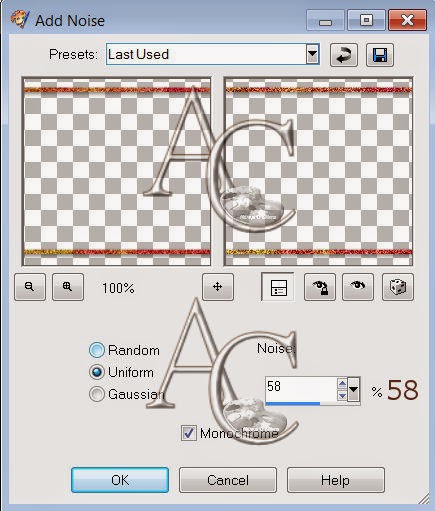
On all frames choose a paper from the kit/change all
frames/adjust/add noise with these setting for all frames
add drop shadow


activate left square layer/copy/paste paper of choice
resize paper/selections/invert on square layer/delete on
paper layer/merge down/add drop shadow/see above for frame

activate right square layer/copy/paste paper of choice
resize paper/selections/invert on square layer/delete on
paper layer/merge down/add drop shadow/see above for frame

activate left rectangle layer/copy/paste paper of choice
resize paper/selections/invert on rectangle layer/delete
on paper layer/merge down/add drop shadow/see above for
frame

activate large circle layer/chose a color from paper #5/ on
material pallet/place that color in top box/null bottom box
selections/modify/smooth with these setting/click ok


add
color to circle layer/keep activated/copy/paste closeup tube
of choice/resize tube by 80%/delete on tube layer/effect
xero/radiance with these setting on tube


click ok/add drop
shadow/see above for frame

activate left circle layer/copy/paste paper of choice/resize
paper/selections/invert on circle layer/delete on paper layer
merge down/add drop shadow/see above for frame

activate right circle layer/copy/paste paper of choice/resize
paper/selections/invert on circle layer/delete on paper layer
merge down/keep activated/copy/paste closeup tube again/resize
by 90%/delete on tube layer/effects/xero/soft mood with these
settings


click ok/add drop shadow/see above for frame

activate right rectangle layer/copy/paste paper of choice/resize
paper/selections/invert on rectangle layer/delete on paper layer
merge down/add drop shadow/see above for frame

activate large rectangle layer/copy/paste paper of choice/resize
paper/selections/invert on rectangle layer/delete on paper layer
merge down/add drop shadow/see above for frame

On word art I colored the letters different colors from the papers
in the kit,mix it up to have fall colors/add drop shadow to frame
do the same with the name.

Copy/paste main tube of choice/place on left side of tag/resize
if needed/add some element to cover the bottom of tube/(see my
tag for reference)add drop shadow to all

now add any other elements you wish to use/resize if needed/have
fun creating to suit your taste/add drop shadow to each element
place where they will look best to you

add your watermark and copyright credits/give it a slight gradient
glow.....

To animate

close all layers except
right circle
left circle
large circle
left rectangle frame
left rectangle
right square frame
right square
left square frame
left square 
mask layer
Background

copy/merge/paste as new animation/duplicate for 25 frames
edit select all on animation/copy/into selected frame of tag
I placed leafs 4 x on bottom and 4x in the middle
see my tag for placement
animation/frame property/30%
go back to psp/close layers that are open
open layers that are closed
copy/merge/paste as new animation/duplicate for 25 frames
edit/select all/paste into selection/place on top
view animation/if satisfied/save as gif

now give your tag to a friend.

You're done...thank you for trying my tutorial
please send me a copy so that I can show case it on my blog
send to.... riggsbee53@gmail.com

Here's another tag using the same kit.

9/2/14

CDO Honored Scraps and Very Many - Unforgettable

Unforgettable

This tutorial was written on September 2,2014.
Any similarities to another tutorial is purely coincidental.
All my tutorial are register with My Free Copyright.
Please do not claim as your own.
This tutorial writer assumes you have a working
knowledge of using Paint Shop Pro.
This tutorial was done in Paint Shop Pro9,
but can be adapted to use in other
Paint Shop Pro versions.


SUPPLIES NEEDED

Tube of choice: I'm using the awesome work of Very Many.
Please do not use unless you have a license to do so.
Get Them HERE

Scrapkit of Choice: I am using PTU Honor Scraps Unforgettable
You can purchase it HERE ...Thanks Patty

Mask of Choice: I am using Whips Designs Mask 051403
This mask is only available for Creative Misfit members
.... Thank You Whip - please choose another mask

Filters used:Eye Candy 4000 gradient glow - HERE
Mura's Moister- Copies - HERE

Animation Shop - HERE

Animation of Choice:I am using Scrappy Bit of Fun animation #119
You can download it HERE.....Thank you Simone

Font for Name and word art is Kingthings Italique
Copy write is always done in Pixelette  HERE

Drop shadow use through out H-2/V-2/O-60/B-6.85

Please leave a thank you when you downloading for supplies.

my tag is just a guide...please use your imagination
and make the tag your own you do not have to
use any of the supplies I used.

     LET'S BEGIN

Open up new raster layer 800x800/copy/paste paper of choice
resize to fit canvas/layers/load/save mask/find your mask
and set with these setting/click ok


copy/paste flower #12/resize by 50% twice and 70% once/effect
mura's filter meister/copies with these setting


resize by 80%
click inside frame/selections/modify by 15%/copy/paste paper
of choice/resize paper/delete on paper layer/keep activated
copy/paste closeup tube of choice/resize and place the part of
the tube you want inside the frame/delete on tube layer/keep
activated/duplicate tube/ on original layer/blend/luminance
legacy/lower opacity to 44%/place duplicate underneath and
lower opacity to 20%/add drop shadow to both tubes

copy/paste frame #3/resize so it sits on top of flower frame
showing some of the bottom frame ( see tag for placement)/add
drop shadow

add elements to decorate frame #3/resize if needed/add drop
shadow to each element.

copy/paste main tube of choice/resize and place on left side
of tag/add drop shadow

add any other elements you wish to use/resize if needed/add drop
shadow to each element/place where they will look best

add word art if you wish/add drop shadow

add your watermark and copyright credits/give it a slight gradient
glow.....now give your tag to a friend.

To animated

Close all layer except
both frames
two close up tubes
background layer for frame
mask layer
wire layer
background layer

copy/merge all open layer/paste as a new animation
open up animation of choice
duplicate your new animation the same number of frames (25)
as you animation you are using
on animated frame/edit/select all
on new animation/edit select all
paste animation into selected frame of new animation
I placed it near the bottom of the tag/do not cover her face
go back to psp and close all layer that are open
open all layers that are closed/copy/merge/take into animation
shop/paste as a new animation/duplicate to get the same number
of frames/edit/select all/paste into selected frame/place on top
of the animation you just did/make sure you line it up correctly
view animation/if satisfied with animation/save as gif

You're done...thank you for trying my tutorial
please send me a copy so that I can show case it on my blog
send to.... riggsbee53@gmail.com


Here's another tag using the kit


5/23/14

PTU Foxy's Designz and Very Many - Dark and Fancy


Dark and Fancy


This tutorial was written on May 23,2014. 
Any similarities to another tutorial is purely coincidental.
All my tutorial are register with My Free Copyright. 
Please do not claim as your own.
This tutorial writer assumes you have a working 
knowledge of using Paint Shop Pro.
This tutorial was done in Paint Shop Pro9,
but can be adapted to use in other 
Paint Shop Pro versions.


SUPPLIES NEEDED

Tube of choice: I'm using the awesome work of Very Many.
Please do not use unless you have a license to do so. 
Get Them HERE

Scrapkit of Choice: I am using PTU Foxy's Designz -Dark and Fancy
You can purchase it HERE ...Thank You Ann

Template of choice:I am using Additive Pleasures Template #99
You can download it HERE...Thanks Tamie

Mask of Choice: I am using Vix's PSP Big Mask # 019
You can download it HERE.... Thank You Vix

Filters used:Eye Candy 4000 gradient glow - HERE
Penta.com-Dot and Cross - HERE

Font for Name is 0 Whoa DNA  HERE
Copy write is always done in Pixelette  HERE

Drop shadow use through out H-2/V-2/O-60/B-6.85

Please leave a thank you when you downloading for supplies.

my tag is just a guide...please use your imagination 
and make the tag your own you do not have to 
use any of the supplies I used.


     LET'S BEGIN

Open up Template and ShiftD and close original...delete 
copyright layer/close all layers/copy/paste paper of choice
resize to fit canvas/layers/load/save mask/find your mask
and set with these setting/click ok


On the following raster layers follow these directions...

Copy/paste Element #15/resize by 70%/place on top of mask

activate left circle layer 4/copy/paste paper of choice/resize
paper/selections/invert on circle layer/delete on paper layer
merge down/add drop shadow

copy/paste close up tube/resize by 70%/place so the top of the 
head is over the top of circle/add drop shadow

activate rectangle layer 1/copy/paste paper of choice resize paper
selections/invert on rectangle layer/delete on paper layer/merge 
down/add drop shadow

Copy/paste elements #11/resize by 70%/place on top of rectangle layer
deform tool/turn it on a left angle/add drop shadow

activate rectangle layer 7/copy/paste paper of choice resize paper
selections/invert on rectangle layer/delete on paper layer/merge 
down/add drop shadow

activate rectangle layer 2/copy/paste paper of choice resize paper
selections/invert on rectangle layer/delete on paper layer/merge 
down/add drop shadow

copy/paste close up tube/resize to fit/duplicate/close duplicated layer
on original layer/blend/overlay/effects/penta.com/dot and cross with these 
setting/click ok/


place duplicate underneath original layer/lower opacity 
to 62%/add drop shadow to both

activate rectangle layer 5/copy/paste paper of choice resize paper
selections/invert on rectangle layer/delete on paper layer/merge 
down/add drop shadow

Copy/paste elements #19/resize by 70%/place on top of rectangle layer 5

activate right circle layer 3/copy/paste paper of choice/resize
paper/selections/invert on circle layer/delete on paper layer
merge down

Copy/paste elements #1/resize by 70%/place inside circle/add drop shadow
recolor circle frame layer 9 to match tag/add drop shadow

activate small square layer 6/copy/paste paper of choice/resize paper
selections/invert on square layer/delete on paper layer/merge down
leave square frame as is/add drop shadow

copy/paste tube of choice/resize if needed/place on right side of tag
add drop shadow

add any other elements you wish to use/resize if needed/add drop 
shadow to each element/place where they will look best
using font 0 Whoa DNA/write dark and fancy/place where you want to place
add drop shadow

add your watermark and copyright credits/give it a slight gradient 
glow.....now give your tag to a friend.

You're done...thank you for trying my tutorial
please send me a copy so that I can show case it on my blog


4/16/14

PTU Honored Scraps and Very Many - Serenity

Serenity

This tutorial was written on April 16,2013. 
Any similarities to another tutorial is purely coincidental.
All my tutorial are register with My Free Copyright. 
Please do not claim as your own.
This tutorial writer assumes you have a working 
knowledge of using Paint Shop Pro.
This tutorial was done in Paint Shop Pro9,
but can be adapted to use in other 
Paint Shop Pro versions.

SUPPLIES NEEDED

Tube of choice: I'm using the awesome work of Very Many.
Please do not use unless you have a license to do so. 
Get Them HERE

Scrapkit of Choice: I am using PTU Honored Scraps Serenity
You can purchase it HERE ...Thanks Patty

Template of choice:I am using Amy/Leah's gimptastictuts Template #15
You can download it HERE...Thanks Leah

Mask of Choice: I am using Moonbeams and Spiderwebs Mask #36
You can download it HERE.... Thank You Staci

Filters used:Eye Candy 4000 gradient glow - HERE

Font for Name is NG Font
Copy write is always done in Pixelette  HERE

Drop shadow use through out H-2/V-2/O-60/B-6.85

Please leave a thank you when you downloading for supplies.

my tag is just a guide...please use your imagination 
and make the tag your own you do not have to 
use any of the supplies I used.

     LET'S BEGIN

Open up Template and Shift D and close original...delete 
copyright layer/close all layers/copy/paste paper of choice
resize to fit canvas/layers/load/save mask/find your mask
and set with these setting/click ok


On the following raster layers follow these directions...

activate small square layer/copy/paste paper of choice/resize paper
selections/invert on square layer/delete on paper/layer merge down
add drop shadow/leave square 2 frame as is

activate square #2 layer/copy/paste paper of choice/resize paper
selections/invert on square layer/delete on paper/layer merge down
add drop shadow

activate square #1 layer/copy/paste paper of choice/resize paper
selections/invert on square layer/delete on paper/layer merge down
add drop shadow

activate rectangle #2 layer/copy/paste paper of choice/resize paper
selections/invert on rectangle layer/delete on paper/layer merge down

activate rectangle #1 layer/copy/paste paper of choice/resize paper
selections/invert on rectangle layer/delete on paper/layer merge down
add drop shadow

activate circle #3 layer/copy/paste paper of choice/resize paper
selections/invert on circle layer/delete on paper/layer merge down
add drop shadow

activate circle #2 layer/copy/paste paper of choice/resize paper
selections/invert on circle layer/delete on paper layer/merge down
add drop shadow

activate circle #1 layer/copy/paste paper of choice/resize paper
selections/invert on circle layer/delete on paper/layer merge down
keep activated/copy/paste closeup tube/delete on tube/eraser tool
ease any excess tube/duplicate/on original/blend/overlay/place 
duplicated closeup under original/add drop shadow to bottom tube
leave circle #1 back as is/add drop shadow

copy/paste your main tube/resize if needed/place tube where it will
look best/add a drop shadow

add any elements you wish to use/resize if needed/add drop shadow to 
each element/place where they will look best

add your watermark and copyright credits/give it a slight gradient 
glow.....now give your tag to a friend.

You're done...thank you for trying my tutorial
please send me a copy so that I can show case it on my blog

9/30/13

PTU Honored Scraps and Very Many

With Love

This tutorial was written on September 30,2013. 
Any similarities to another tutorial is purely coincidental.
All my tutorial are register with My Free Copyright. 
Please do not claim as your own.
This tutorial writer assumes you have a working 
knowledge of using Paint Shop Pro.
This tutorial was done in Paint Shop Pro9,
but can be adapted to use in other 
Paint Shop Pro versions.


SUPPLIES NEEDED

Tube of choice: I'm using the awesome work of Very Many.
Please do not use unless you have a license to do so. 
Get Them HERE

Scrapkit of Choice: I am using PTU Honored Scraps -With Love
You can purchase it HERE ...Thanks Patty

Template of choice:I am using Punky Butts Template #127
You can download it HERE...Thanks Punky

Mask of Choice: I am using Vix PSP Mask # 320
You can download it HERE.... Thank You Vix

Filters used:Eye Candy 4000 gradient glow - HERE

Font for Name is Choplin Script
Copy write is always done in Pixelette  HERE

Drop shadow use through out H-2/V-2/O-50/B-5.00

Please leave a thank you when you downloading for supplies.

my tag is just a guide...please use your imagination 
and make the tag your own you do not have to 
use any of the supplies I used.


     LET'S BEGIN

Open up Template and ShiftD and close original...delete 
copyright layer/close all layers/copy/paste paper of choice
resize to fit canvas/layers/load/save mask/find your mask
and set with these setting/click ok


On the following raster layers follow these directions...

activate strip blue layer/copy/paste paper of choice/resize paper
selections/invert on strip layer/delete on paper layer/merge down
add drop shadow

activate strip black layer/copy/paste paper of choice/resize paper
selections/invert on strip layer/delete on paper layer/merge down
add drop shadow

activate circle left layer/copy/paste paper of choice/resize paper
selections/invert on circle layer/delete on paper layer/merge down
recolor circle left frame to match tag/add drop shadow

activate circle right layer/copy/paste paper of choice/resize paper
selections/invert on circle layer/delete on paper layer/merge down
recolor circle right frame to match tag/add drop shadow

activate bottom rectangle/recolor rectangle to match tag/recolor frame
to match the tag/add drop shadow

activate top rectangle/recolor rectangle to match tag/recolor frame
to match the tag/add drop shadow

activate large circle layer/copy/paste paper of choice/resize paper
selections/invert on circle layer/delete on paper layer/merge down
keep activated/copy/paste closeup tube/place closeup where most of 
the face is showing/invert on circle layer/delete on tube layer/effects
xero/porcelaid/with these setting


click ok/drop shadow on tube/ recolor 
large circle frame to match tag

activate strip layer/copy/paste paper of choice/resize paper
selections/invert on strip layer/delete on paper layer/merge down
recolor diamond dots to match tag

activate top small circle layer/copy/paste paper of choice/resize 
paper/selections/invert on circle layer/delete on paper layer/merge 
down/recolor top small frame to match tag

activate bottom small circle layer/copy/paste paper of choice/resize 
paper/selections/invert on circle layer/delete on paper layer/merge 
down/recolor bottom small circle and frame to match tag

activate square layer/copy/paste paper of choice/resize paper/selections
invert on square layer/delete on paper layer/merge down/keep activated
copy/paste close up tube/resize to fit/invert on paper layer/delete on
tube layer/effects/xero/radiance/with these setting


click ok/add drop
shadow to tag/recolor square frame to match tag

add any other elements you wish to use/resize/add drop shadow to each 
element/place where they will look best

copy/paste main tube of choice/resize/place across large circle and square
add drop shadow

add your watermark and copyright credits/give it a slight 
gradient glow.....now give your tag to a friend.

You're done...thank you for trying my tutorial
please send me a copy so that I can show case it on my blog


9/1/13

Out of Love Collab - Sneak Peek -Foxy Designz


Tutorial made with Foxy's Designs portion

So Blue Over You

This tutorial was written on August 11,2013. 
Any similarities to another tutorial is purely coincidental.
All my tutorial are register with My Free Copyright. 
Please do not claim as your own.
This tutorial writer assumes you have a working 
knowledge of using Paint Shop Pro.
This tutorial was done in Paint Shop Pro9,
but can be adapted to use in other 
Paint Shop Pro versions.


SUPPLIES NEEDED

Tube of choice: I'm using the awesome work of Very Many.
Please do not use unless you have a license to do so. 
Get Them HERE

Scrapkit of Choice: I am using PTU Foxy's Designz - Chasing The Blues Collab
You can purchase it HERE ...Thanks Foxy

Template of choice:I am using Additive Pleasures Template #53
You can download it HERE...Thanks Tamie

Mask of Choice:I am using Weescotslass Creations mask #105
you can download it HERE.... Thank Chell

Filters used:Eye Candy 4000 gradient glow - HERE
Penta.com-Dot and Cross - HERE
Xero - Fritillary - HERE

Font for Name is Andantino Script
Copy write is always done in Pixelette  HERE

Drop shadow use through out H-2/V-2/O-50/B-5.00

Please leave a thank you when you downloading for supplies.

my tag is just a guide...please use your imagination 
and make the tag your own you do not have to 
use any of the supplies I used.

     LET'S BEGIN

Open up Template and ShiftD and close original...delete 
copyright layer/close all layers/copy/paste paper of choice
resize to fit canvas/layers/load/save mask/find your mask
and set with these setting/click ok/place on top of mask layer


On the following raster layers follow these directions...

glittered circle as is/activate circle layer/copy/paste paper of 
choice/resize paper/selections/invert on circle layer/delete on
paper layer/merge down/keep activated/copy place closeup tube
invert on circle layer/delete on tube layer/erase excess tube
effects/penta.com/dot and cross with these settings/add drop shadow


glittered circle2 as is/activate circle 2 layer/copy/paste paper 
of choice/resize paper/selections/invert on circle2 layer/delete
on paper layer/merge down/keep activated/copy/paste closeup tube
invert on circle layer/delete on tube layer/effects/xero/fritillary
with these settings/add drop shadow


glittered square as is/activate square layer/copy/paste paper of 
choice/resize paper/selections/invert on square layer/delete on 
paper layer/merge down/add drop shadow

activate heart layer/copy/paste paper of choice/resize paper
selections/invert on heart layer/delete on paper layer/merge 
down/add drop shadow

glittered rectangle layer as is/activate rectangle layer/copy/paste 
paper of choice/resize paper/selections/invert on rectangle layer
delete on paper layer/merge down/add  drop shadow

leave word art and diamonds and heart layers as is/add drop shadow

copy/paste your tube of choice/resize if needed/place on your 
tag where it will look best/add drop shadow

add any other elements you wish to use/resize/add drop shadow 
to each element/place where they will look best

add your watermark and copyright credits/give it a slight 
gradient glow.....now give your tag to a friend.

You're done...thank you for trying my tutorial
please send me a copy so that I can show case it on my blog