Showing posts with label No Scrap Tutorial. Show all posts

3/10/18

My Love Bug

Ride In My Love Bug

This tutorial was written on March 10,2018. 
Any similarities to another tutorial is purely coincidental.
All my tutorial are register with My Free Copyright. 
Please do not claim as your own.
This tutorial writer assumes you have a working 
knowledge of using Paint Shop Pro.
This tutorial was done in Paint Shop Pro9,
but can be adapted to use in other 
Paint Shop Pro versions.


SUPPLIES NEEDED

Tube of choice: I'm using the awesome work of Marika.
Please do not use unless you have a license to do so. 
Get her tubes HERE

Mask of Choice: I am using Rebel Designz mask 7
You can download it HERE.... Thank You Gizzy

Graident of Choice: I'm using a gradient by Tonya's Temptations
CMBD14 #6 - Download HERE ...Thanks Tonya

Shape- Preset shape RA ornamental corner a by Roxanne Acevedo
You can download HERE...Thanks Roxanne

Flower of Choice: I am using Frangipani by Bluebird 
Download HERE - Thanks Bluebird

Ribbon of Choice -Ribbon made by Always Creation Download HERE

Filters used:Eye Candy 4000 gradient glow - HERE
Penta.com - Jeans - HERE
Blend-PSP-hard light

Word art by Always Creations -HERE

Font for Name and Word art is Back To Black
Copy write is always done in Pixelette  HERE

Drop shadow use through out H-2/V-2/O-60/B-6.85

Please leave a thank you when you downloading for supplies.

my tag is just a guide...please use your imagination 
and make the tag your own you do not have to 
use any of the supplies I used.


     LET'S BEGIN

open up new raster layer 800x800/go to preset shapes and find preset
ornamental corner a/size x697-y491/convert to raster layer/duplicate
mirror/bring corners together/merge down/duplicate/image flip/close
both corners/you will have a frame/merge down/resize frame to your 
liking/place in center


duplicate frame/close duplicate frame/magic wand/click on black area
flood fill with a color from your tube/open duplicate frame/place
underneath main frame/move bottom frame a little to the right(see
my tag for position) add drop shadow to bottom frame


on top frame/duplicate/close this frame/magic wand/click on bottom frame
effects/texture/blinds with these setting/open top frame/blend/hard light
make sure this frame is on top/merge down/add drop shadow to both frames


new raster layer/place under frame/magic wand/click outside frame/flood
with color of choice or gradient

new raster layer/choose two colors from your tube of choice or a gradient
flood fill new layer with color layers/load/save mask/find your mask/set 
with these setting/click ok


copy/paste tube of choice/place on top of frame/resize if needed/add drop 
shadow

copy/paste tube of choice and place where it looks best to you/resize if
needed/add drop shadow/effects penta.com-jeans/ with these settings


add wordart if you wish or you can use mine 
add fat gradient glow/add drop shadow

add your watermark and copyright credits/give it a slight gradient 
glow.....now give your tag to a friend.

You're done...thank you for trying my tutorial
please send me a copy so that I can show case it on my blog

3/6/18

Luck of the Irish

Luck of the Irish

This tutorial was written on March 6,2018. 
Any similarities to another tutorial is purely coincidental.
All my tutorial are register with My Free Copyright. 
Please do not claim as your own.
This tutorial writer assumes you have a working 
knowledge of using Paint Shop Pro.
This tutorial was done in Paint Shop Pro9,
but can be adapted to use in other 
Paint Shop Pro versions.


SUPPLIES NEEDED

Tube of choice: I'm using the awesome work of Robert Alvarado.
Please do not use unless you have a license to do so. 
Get Them HERE

Mask of Choice: I am using Laurie Made Me Mask 140
You can download it HERE.... Thank You Laurie

Preset Shape of Choice: I am using Scrap Stuff by Shawna Frame Plate 10
SK leaf 12, and candle 134...You can download HERE

Preset Shape -Lucky Charms -money bag,cauldron,coin by Roxanne Acevedo
You can download HERE....Thank you Roxanne

Download all preset shapes to your preset folder in PSP

Filters used:Eye Candy 4000 gradient glow - HERE
Toadies-Ommadawn : HERE

Font for Name is Celtic
Copy write is always done in Pixelette  HERE

Drop shadow use through out H-2/V-2/O-60/B-6.85

Please leave a thank you when you downloading for supplies.

my tag is just a guide...please use your imagination 
and make the tag your own you do not have to 
use any of the supplies I used.


     LET'S BEGIN

Open up new raster layer 800x800/new raser layer/flood fill with this 
color #065a33/layers/load/save mask/find your mask/set with these setting
click ok

download preset shape Shawna Frame Plate 10 to your preset shape folder 
in paint shop pro/open up preset shape and find the shape you're looking 
for/make a large size Frame and place in middle of mask layer/duplicate 
and merge down three times/magic wand inside frame/new layer raser/floodfill 
with color #256372/place underneath frame (see my tag for placement)

open new layer raster/find the leaf 12 preset shape/ draw out a medium
size leaf/magic wand/click inside leaf/flood filled with color #065a33
Duplicate and place on left side of frame/add drop shadow


Effect/inner bevel with these settings
Duplicate and place on left side of frame/add drop shadow

open new raster layer/ find coin preset/draw out a medium size coin/magic wand
click on coin/to color coin/open new raster layer/place underneath coin layer
floodfill bottom layer with this color #e4ae08/merge down/ magic wand/click 
outside coin /delete on floodfill layer/add drop shadow/duplicate 2x 
(see my tag for placement)


copy/paste tube of choice/resize if needed/place in center of frame/duplicate
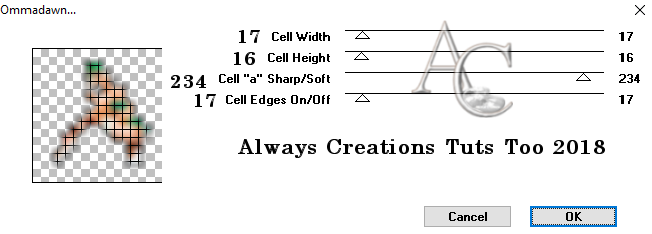
on duplicated layer/effects/plugin/toadies/ommadawn with these setting

drop shadow on main tube/place duplicated tube underneath main tube

open new raster layer/ find cauldron preset/draw out a large size cauldron/magic
wand/clcik on cauldron/to color cauldron/open new raster layer/place underneath 
cauldron layer/floodfill bottom layer with this color #256372/merge down/ magic 
wand/click outside cauldron /delete on flood fill layer/add drop shadow 
Click on coins one at a time/change color to #e4ae08
(see my tag for placement)


open new layer raster/find the candle preset shape/ draw out a medium size candle
magic wand/click on candle/smooth selection/modify with these setting

flood filled with color #256372/effects/inner bevel with these settings

to color wick/magic wand
click on wick and floodfill with #e4ae08/effects/inner bevel with these settings

add drop shadow (see my tag for placement)


open new raster layer/ find money bag preset/draw out a medium size bag/magic wand
click on bag/to color bag/open new raster layer/place underneath bag layer/floodfill 
bottom layer with this color #e4ae08/merge down/ magic wand/click outside bag/delete 
on flood fill layer/add drop shadow (see my tag for placement)


set up your tag the way you want it/your tag doesn't have to look like mine/be creative
do your own thing

add your watermark and copyright credits/give it a slight gradient 
glow.....now give your tag to a friend.

You're done...thank you for trying my tutorial
please send me a copy so that I can show case it on my blog
send to.... riggsbee53@gmail.com

5/22/14

FTU Tutorial Dean Yeagle - Damaged Beyond Repair

Damaged Beyond Repair

This tutorial was written on May 22,2014. 
Any similarities to another tutorial is purely coincidental.
All my tutorial are register with My Free Copyright. 
Please do not claim as your own.
This tutorial writer assumes you have a working 
knowledge of using Paint Shop Pro.
This tutorial was done in Paint Shop Pro9,
but can be adapted to use in other 
Paint Shop Pro versions.


SUPPLIES NEEDED

Tube of choice: I'm using the awesome work of Dean Yeagle.
Please do not use unless you have a license to do so. 
Get Them HERE

Mask of Choice: I am using Moonbeams and Spiderwebs Mask 22
You can download it HERE.... Thank You Staci

Brush of Choice: I am using a brush my Raven
You can download it HERE....Thank you Raven

Preset Shape of Choice: I am using SK Random 112
Preset Shape - Square-Oval
Clock and Telephone - HERE -thank you Cajoline-Scrap
Flowers - HERE -Colleen's Creations
Candle - HERE - Kittz Kreationz 
Word Art of Choice:

Filters used:Eye Candy 4000 gradient glow - HERE
Tramage - Tow the line - HERE
Dsb Flux-Blast - HERE


Font for Name is Night Sky
Copy write is always done in Pixelette  HERE

Drop shadow use through out H-2/V-2/O-60/B-6.85

Please leave a thank you when you downloading for supplies.

my tag is just a guide...please use your imagination 
and make the tag your own you do not have to 
use any of the supplies I used.


     LET'S BEGIN

Open up new raster layer 800x800/copy/paste paper of choice
resize to fit canvas/layers/load/save mask/find your mask
and set with these setting/click ok


download preset shape SK112 to your preset shape folder in paint 
shop pro/open up preset shape and find the shape you're looking 
for/make a medium size shape and place in upper left side near 
the top(see my tag for placement)

open square preset shape/make a large square using a dark color
from your tube of choice/effects/tramage/tow the line with these
setting


click ok/place toward left side center of tag over top 
first preset shape/add drop shadow

open oval preset shape/make a long oval using a contrasting color
from your tube of choice/place on top of square/add drop shadow

copy/paste tube of choice/place in center of oval shape/resize if 
needed/effects/dsb flux/blast/first right and then left/ with these 
settings


copy/paste tube of choice and place on top of blast image/resize if
needed/add drop shadow

add any other elements you wish to use/resize if needed/add drop 
shadow to each element/place where they will look best

add word art if you wish/add fat gradient glow/add drop shadow

add your watermark and copyright credits/give it a slight gradient 
glow.....now give your tag to a friend.

You're done...thank you for trying my tutorial
please send me a copy so that I can show case it on my blog


9/14/13

Dominic Marco- Gangster Babe

Gangster Babe

This tutorial was written on September 13th 2013. 
Any similarities to another tutorial is purely coincidental.
All my tutorial are register with My Free Copyright.
Please do not claim as your own.
This tutorial writer assumes you have a working knowledge of using 
Paint Shop Pro.
This tutorial was done in Paint Shop Pro9,but can be adapted to 
use in other Paint Shop Pro versions.


SUPPLIES NEEDED

Tube of Choice: I am using the awesome artwork of Dominic Marco
You can purchase his tubes HERE
Please do not use without a license to do so

Mask of Choice: I'm using one of Urban Fairytales mask #11
You can find it HERE
Put mask in mask folder..Thanks so much for the use of your mask

Template of Choice:I'm using Divine Intentionz #362.
You can get it HERE     Thank you Missy

You will also need bows and a motorcycle of Choice.

Font for name is Riesling and copy write 
is always done in Pixelette ... 
Get them HERE


Dropshadow use through out H-2/V-2/O-50/B-5.00

Please leave a thank you when you downloading for supplies.


my tag is just a guide...please use your imagination and make the tag your own
you do not have to use any of the supplies I used.


     LET'S BEGIN
Open Template/Shift D/delete original template/delete copyright layer
close all layers except background layer/foreground/background/#761b3f
or the color of your bow/flood fill background with that color/go to layers
load/save mask/find your mask/setup with these setting below/click ok/merge
group.


activate thin rectangle 1/flood fill with color from your tube/I used
#2d2d2d/activate thin rectangle 2/copy/paste halloween paper of choice
resize/invert on rect 2/delete on paper/merge down/activate thin rectangle 3
copy/paste halloween paper of choice/resize/invert on rect 2/delete on paper
merge down/change color of dotted lines to match tag

activate back frame/flood fill with black grey gradient/keep activated
copy/paste tube of choice/position so face is showing/invert on frame
delete on tube/ repeat on second frame/use different part of tube
add drop shadow to tubes/leave frames as is/add drop shadow


copy/paste tube of choice/resize if needed/place where it will look best
add drop shadow/color word art to match tag

add any other elements you wish to use/resize if needed and place where
they will look best/add drop shadow to each

Add your water mark and copyright/now give to a friend

thank you for trying my tutorial..please send me a copy of what you did 
so I can showcase it...riggsbee53@gmail.com

8/6/10

No Scrap Tutorial - Ismael Rac

Shaking My Hips


Here's another tutorial I wrote.This is a very simple tutorial,although it's animated

it's really easy. Any similarities to another tutorial is purely coincidental.

All my tutorial are register with My Free Copyright. Please do not claim as your own.
This tutorial writer assumes you have a working knowledge of using Paint Shop Pro.
This tutorial was done in Paint Shop Pro9,but can be adapted to use in other
Paint Shop Pro versions.


SUPPLIES NEEDED

Tube of Choice: I am using the awesome artwork of Ismael Rac..

You can purchase his tubes HERE
Please do not use without a license to do so

Scrapkit or colors of your choice...I chose to do colors.

Mask of Choice: I'm using one of Weescotslass template WSL#189..You can find it HERE
Put mask in mask folder..Thanks so much for the use of your mask

Template of Choice: I am using Blissfully Beth template#84..you can get it HERE...Thanks Beth

Font for name is Poor Richard,Rockwell and copy write is always done in Pixelette ... Get them HERE

Effects use dbs flux-bright noise.....Get it HERE

Dropshadow use througout H-2/V-2/O-50/B-6.72

Please leave a thank you when you downloading for supplies.


     LET'S BEGIN

Open up Template and ShiftD and close original...delete copyright layer
close all layers except the background layer...the one we'll be working on

Choose a color or paper of choice/copy/paste...now go to layers/Load/
save mask/load mask from disk/ and find your mask of choice...with these setting
see photo below....go to layers/merge group


now make circle layer active/ choose paper or color of choice and do each circle a different color

now active frame2 background/magic wand/mode[shift]/match mode[RGB Value]/Tolerance [55]
Contiguous[checked]/Feather[0]/anti-alias[checked]/click Inside
and duplicate 2x....rename each layer bkg frame 1,2 and 3
close off top two layers and choose a color for the bkg frame 1
go to dbs flux with these setting...see photo below...


click ok
now deactivate 1st layer and go to 2nd layers/choose different color/go to dbs flux and hit ok 2x
now deactivate 2nd layer and go to 3rd layer/choose different color/go to dbs flux and hit ok 3x
deactivate layers 2 and 3 for the time being...leave 1st layer open.

go to frame2/magic wand/same setting as above...click inside/flood-filled with color black.


Now repeat process from frame1 background as above,rename these layers bkgr 4,5and 6
using three different colors than frame2/color each layer and do the dbs flux
repeat process for frame1...close layers 5 and 6 and leave layer4 open

now place your tube where you want it and duplicate 2x. close top tube and on the middle
tube/mirror it /move to the left side a little...close this layer and on the bottom tube
move it over a little to the right.(see my tag for reference)
close the top two layers of the tube

add saying of choice or use the saying I have..I did it in Rockwell
add your copyright and watermark and your done

Now it time to animate......


If you have your board set up right you should have this


Copy merge and paste into animation shop
go back to paint shop pro and activate layers
fra2bkgr2/fra1bkgr5 and tube 2/copy merge and paste
into animation shop after first layer
go back to paint shop pro and activate
fra2bkgr3/fra2bkgr6 and tube3/copy merge and paste
into animation shop after 2nd layer
edit select all frames/animation/frame properties/set to 30
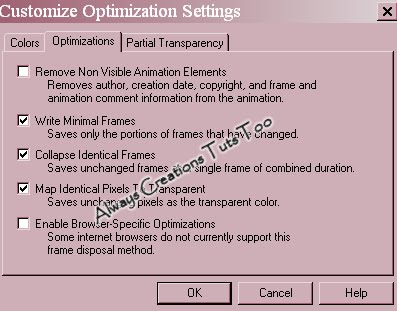
save as gif at these setting


You're done!!!...Save as Gif
Thanks for trying my tutorial
If you use send me a copy so I can show case it...thanks

2/16/10

No Scrap Tutorial - Rac Babes Rocks

Here's another tutorial I wrote.This tutorial uses no scrap kit and is very easy to do..
This one is great for a beginner tagger.
Any similarities to another tutorial is purely coincidental.All my tutorial are register
with My Free Copyright. Please do not claim as your own.This tutorial writer assumes you
have a working knowledge of using Paint Shop Pro. This tutorial was done in Paint Shop Pro9,
but can be adapted to use in other Paint Shop Pro versions.


SUPPLIES NEEDED

Tube of Choice: I am using the awesome artwork of Ismael Rac..You will need at least three tubes.
You can purchase his tubes HERE  Please do not use without a license to do so
Mask of Choice: I am using Mask #11 from MB Creations..unfortunately I can't remember where I got this from.If it is yours please contact me so I may give credit...Thanks
Font for name is Phatt Phreddy and copy write is always done in Pixelette ... Get them HERE
Drop shadow use throughout H-2/V-2/O-50/B-6.72


     LET'S BEGIN

Open up New Template 500x500/flood filled with white
Go to layers/Load/save mask/load mask from disk/ and find your mask of choice...with these setting

create mask from source luminance..../orientation: fit to layer.../Options: Hide all masks/load
Layers/merge/merge group.../re done mask again with a different color from one of your tubes
merge both groups together

Add your three tubes and position where you want them...add drop shadow...add some musical notes
chose a font and write Rac Babes Rocks and place on tag (see my tag)...resize all layers

Add your copyright and watermark and you are done...

Thanks for trying my tutorial
If you use send me a copy so I can show case it...thanks

No Scrap Tutorial - Brat With An Attitude

Here's another tutorial I wrote.This tutorial uses no scrap kit and is very easy to do..
Any similarities to another tutorial is purely coincidental.All my tutorial are register
with My Free Copyright. Please do not claim as your own.This tutorial writer assumes you
have a working knowledge of using Paint Shop Pro. This tutorial was done in Paint Shop Pro9,
but can be adapted to use in other Paint Shop Pro versions.

SUPPLIES NEEDED

Tube of Choice: I am using the awesome artwork of Ismael Rac..You can purchase his tubes HERE
Please do not use without a license to do so
Template of Choice: I'm using one of Kristin templates #58 from Wicked Dreams..You can find it HERE  Please do not share with other,direct them to her site
Mask of Choice: I am using Mask #27 from Sue's Creations..I'm sorry but Sue has closed her blog
I can not give this but please find another
Font for name is Riesling and copy write is always done in Pixelette ... Get them HERE
Drop shadow use throughout H-2/V-2/O-50/B-6.72
Filter used Mura Filter Meister- Copies..Please Google it.

     LET'S BEGIN

Open up Template and ShiftD and close original...delete copyright layer
close all layers except the background layer...the one we'll be working on

Choose a colors from your tube...I chose bc1517/go to layers new raster layer and flood fill with that
color/Go to layers/Load/save mask/load mask from disk/ and find your mask of choice...with these setting:
create mask from source luminance..../orientation: fit to layer.../Options: Hide all masks/load
Layers/merge/merge group...

open flower layer/selection/select all/float/defloat...color bc1517
using pixelette font size 8 type the word brat on top of the flower layer
go to Mura Filter Meister-copies with the following settings


Go to the flower layer/selections/select all/float/defloat/then invert
now to the word art layer and delete... brat word art should now be within the flower
Go to word art layer and duplicate/on original layer change  the color to white and close
and on copy layer flood fill with color from tube...I used C11318
Give bottom layer a drop shadow. On the heart layer/selections/select all/float/defloat
/modify/smooth...with smoothing amount-10/corner scale-10/anti-alias / preserve corners checked
flood-fill with white/ select none


0n the word layer change color to match your tag/ add your tube of choice/bring your tube down
until it  lays on the bottom of the brat word( see my tag )...add a drop shadow to tube
on the stars layer change the color to white...now add drop shadow to layers that were not done
previously.


Add your copyright and watermark and you are done...resize if needed


Thanks for trying my tutorial
If you use send me a copy so I can show case it...thanks

***************************************************************

Sky Blue over at The North Wing made this awesome tag using this
tutorial...thanks Sky

12/7/09

No Scrap Tutorial - My Wish


Here's another tutorial I wrote. We used this template for one of our challenges and I
loved the way it turned out....
Any similarities to another tutorial is purely coincidental.All my tutorial are register
with My Free Copyright. Please do not claim as your own.This tutorial writer assumes you
have a working knowledge of using Paint Shop Pro. This tutorial was done in Paint Shop Pro9,
but can be adapted to use in other Paint Shop Pro versions.

SUPPLIES NEEDED

Tube of Choice: I am using the awesome artwork of Keith Garvey..or you can use tubes of your choice...
You can purchase his tubes HERE. Please do not use without a license to do so

Template of Choice: I'm using Template#127 from Blissfully Beth..She has some awesome items on her blog.
you can check her HERE... Thanks so much for the share

Font for name is Santa's Sleigh Full and copy write is always done in Pixelette ... Get them HERE

Drop shadow use through out H-2/V-2/O-50/B-5


     LET'S BEGIN

Open up Template and ShiftD and close original...delete copyright layer
close all layers except the background layer...the one we'll be working on
What I did was pick a shade of red from the tube I'm using and added it to the
color pallet..then I used the color target brush to color the background the
shade of red...now close all the layers except for the gray vert rec...using
the magic wand click on the inside a color fill it black ( or color of choice
depending on what tube you are using )...now repeat process using red for the
white vert rec...add drop shadow...

now go to red circle 2 and white circle2 and open them...click on the inside of
the red circle with your magic ward /select/modify expand by 2 and place your male
tube the way you want it. I used a close up shot...go to white circle and invert
and then go back to tube layer and delete...select none...(make sure you cut all
excess tube left over so you don't have black lines on your tag when you're done)
do the same this with the next circle(for this one I chose the body image)

Now you have a choice of using the large word art or the three smaller word art.
I chose the three small ones...it's up to you...Place you male tube on your tag
where you want him and give a drop shadow...now place the female tube where you
want it and give a drop shadow..now you may need to move your word art around
a bit to get the effects you want.make sure all layers have a drop shadow except
the word art layers...resize your tag and place copyright and watermark.

You are done!!!! Thank you for using my tutorial
and don't forget to let me see what you done so I can showcase it


*****************************************************************


Here's a tag that my friend Mama Ev made from my tutorial...Thanks Mama Ev.

FTU No Scrap Tutorial and Barbara Jensen

Funky Christmas

Here's another tutorial I wrote because I received a lot of feed back on the tag.
Any similarities to another tutorial is purely coincidental.All my tutorial are register
with My Free Copyright. Please do not claim as your own.This tutorial writer assumes you
have a working knowledge of using Paint Shop Pro. This tutorial was done in Paint Shop Pro9,
but can be adapted to use in other Paint Shop Pro versions.

SUPPLIES NEEDED

Tube of Choice: I am using the awesome artwork of Barbara Jensen.. You can purchase
her tubes HERE. Please do not use without a license to do so

Template of Choice: I'm using Template #122 by Blissfully Beth..you can get it HERE
Thanks so much for the share

Mask of choice: I'm using Weescotslass Creations Mask 255..You can get it HERE

Font for name is Franklin Gothic Demi and copy write is always done in Pixelette ... Get them HERE

Drop shadow use through out H-2/V-2/O-50/B-5


     LET'S BEGIN

Open up Template and ShiftD and close original...delete copyright layer
activate white background..layers/new raster layer/ok...floor fill with color of choice from your tube
go to layers/load/save mask and find the mask you're using with the following input

create mask from/source luminance...orientation/fit to layer...Option/hide all mask/load
then go to layers/merge/merge group

Because the tubed I used had the same colors as the template...there wasn't much else to do as far
as coloring was concern. I did make sure that all the layers had the above mention drop shadow.

place your tube between the red circle back and the 1 layer...duplicate the tube layer
and x out the copied layer...eraser the over hang of the tube on the bottom and top.
activate the copy layer and just eraser the bottom part and leave the top part hanging on top
of frame.the copy layer should be between the black line layer and th dot layer.

go to the back circle layer and activate with the magic ward...take your tube and place the part
that you want showing in the middle circle...invert on the circle layer and delete on the part you
want showing...do the same thing with the green circle layer.put a drop shadow on all your tube parts.

resize entire tag if needed...add copy right information and your water mark

Give a friend a gift by adding their name...for the name I made it like the funky word art
I used a fat font and did the name in red and then in white...put the white layer under the red
and drop shadow to make it stand out......

You are done!!!! Thank you for using my tutorial
and don't forget to let me see what you done so I can showcase it

FTU -No Scrap Tutorial and Dominic Marco

Sexy

This tutorial was written by me in November, 2009. Just getting around to posting this.
Any similarities to another tutorial is purely coincidental.All my tutorial are register
with My Free Copyright. Please do not claim as your own.This tutorial writer assumes you
have a working knowledge of using Paint Shop Pro. This tutorial was done in Paint Shop Pro9,
but can be adapted to use in other Paint Shop Pro versions.

SUPPLIES NEEDED

Tube of Choice: I am using the awesome artwork of Dominic Marco.. You can purchase
his tubes at CILM. Please do not use without a license to do so.
Dominic Marco is now independent HERE

 
Template of Choice: Template #2 from Seachell Scraps...you can down load HERE
...Thanks

Papers of Choice or use colors to match tag

Mask of Choice: I'm using EBD Mask#49 HERE

Font for name is Phatt Phreddy

copy write is always done in Pixelette ... 
Please Google for them.

Drop shadow use throughout H-2/V-2/O-50/B-5

     LET'S BEGIN

Open up Template and ShiftD and close original...Open paper7 and copy/paste over top background
resize if needed ...go to layers/load-save mask and find your mask. Use these settings

create mask from/source luminance/orientation-fit to layer
option /fit to layer/click load
 
Activate flower layer...select/float/defloat/modify/expand by 1...copy/paste paper of choice
go to circle layer/invert....go to paper layer and delete...activate rectangle layer....select/
float/defloat/modify/expand by 1...copy/paste paper of choice...go to rectangle layer and invert
go to paper layer and delete...keep the dash layers as is

Now comes the fun part...customize your tag anyway you wish.

 
I added some bows and doodle/add a drop shadow on all your layers
....add copy right and watermark
and you're done!!!! Give a friend a gift and add their name...


Thank you for trying my tutorial!!!

11/11/09

FTU No Scrap Tutorial - Pinuptoons

Girly Punk

This tutorial was written November 6 2009. Please read my tou before using. This is a easy tutorial to follow...Great for a beginner...Have fun with it and use your imagination. It doesn't have to look like mine. It's just a guide.


Supplies Needed

Tube of Choice: I am using the awesome work of Pinuptoons. You can purchase his
great work HERE at  CILM. Please do not use this tube without a license to do so.

Template of Choice: Rachael of Scraps of Enchantment. She has some awesome templates.
Thank you Rachael for your talented work. Get it HERE

Elements of Choice: I used an element from Missy's Girl's Rock Too scrap kit.You can
use that or something else. Get it Here....Thank Missy
                   
Drop Shadow V-2 H-(-2) O-40 B-3
Font for name is Organic Element and Pixette...get it HERE

Let's Begin

For this template you need to chose you tube first.if you colors don't match the
template you need to use the change to target bush to change the colors.

Open up Template ShiftD and close original.Delete copy layer.
Choose two colors from your tube if you're changing colors.
Go to punk layer and activate it....take your magic wand tool and choose
selection/rectangle and outline each area...then change color to the colors you
chose....do this with each layer except black star(leave as is).

Add your tube and resize if needed and add drop shadow to all layers....
Place your element where it will look best...Resize the entire tag if you choose
Don't forget to add copyright and watermark. Be nice to a friend and gift the tag
with their name on it...Congrats you're done...very easy...great for beginners

Thank you for using my tutorial!!!!

8/6/09

No Scrap Tutorial - Michael Landfeld

This Babe Wants To Rock

Here's another tutorial I wrote.This is a great tutorial for a beginner.
Any similarities to another tutorial is purely coincidental.

All my tutorial are register with My Free Copyright. 
Please do not claim as your own.This tutorial writer assumes you
have a working knowledge of using Paint Shop Pro. 

This tutorial was done in Paint Shop Pro9,
but can be adapted to use in other Paint Shop Pro versions.


SUPPLIES NEEDED

Tube of Choice: I am using the awesome artwork of Michael Landefeld..
You can purchase his tubes HERE
Please do not use without a license to do so

Template of Choice: I'm using Wicked Scraps template#34..You can find it HERE
Thanks Kristin for the use of your work.

Mask of Choice: I am using Sue's Creations Mask#26..Sue is no longer on the net right
now so please use another mask

Font for name is Garamond
  and copyright is always done in Pixelette ... Get them HERE

Drop shadow use throughout H-2/V-2/O-50/B-6.72

  
     LET'S BEGIN

Open up Template and ShiftD and close original...delete copyright layer
close all layers except the background layer...the one we'll be working on

Go to layers/new raster layer/click ok.Flood fill this layer with color from
your tube. I chose 41578d...

Go to layers/load/save mask/load mask from disk...find your mask and set it with
these setting....

layers/merge group

Activate circle layer/click on magic wand...mode-add/match-RGB value/Tolerance 10
contigous checked/feather 0/anti-alias checked/inside

Choose a color from the tube...I chose f8d56d. flood fill circle with this color.
...add a drop shadow

Activate the bars and repeat the same process as the circle layer
from the kit...I chose 41578d

I left the musical notes as is and the stars I color one the same as the circle
and the other one the same as the bars

actvate the word layer/selections/select all/float/defloat and color it the
same color as the bars

Add your tube where ever you want to place it.

add a drop shadow on all layers

add your copyright and watermark and your done

Thanks for trying my tutorial
If you use send me a copy so I can show case it...thanks